
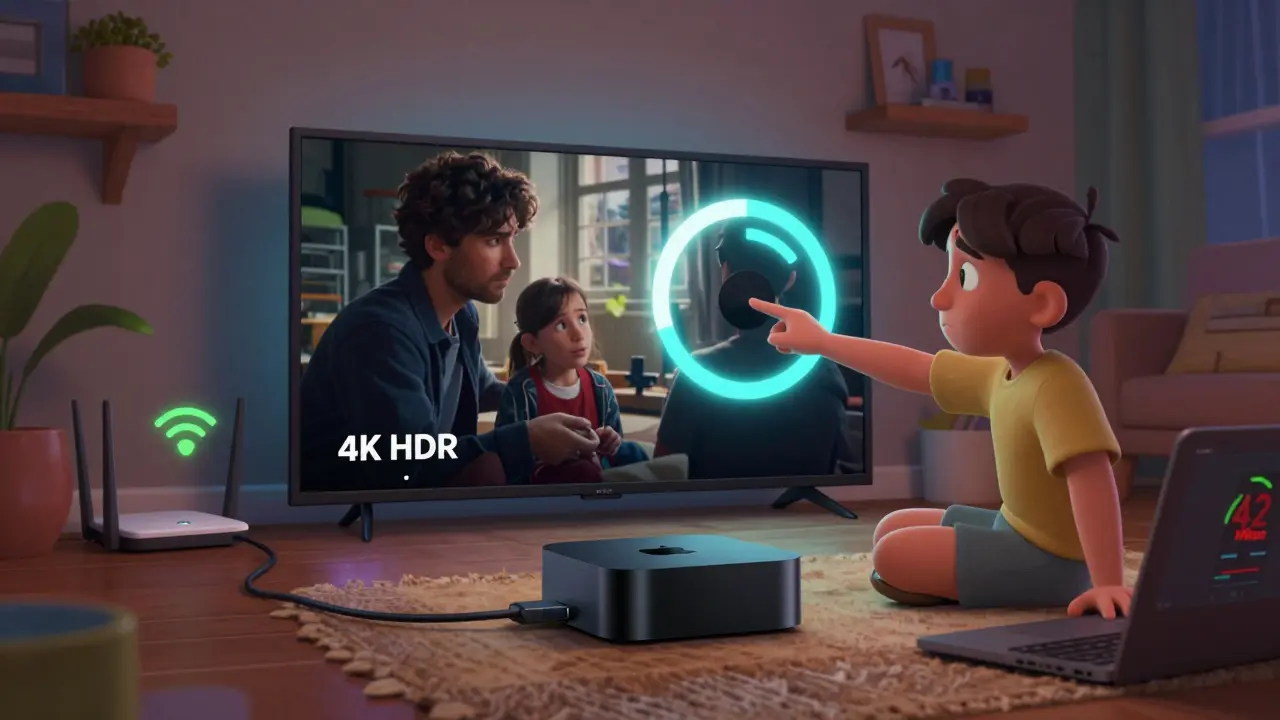
If your Apple TV+ keeps buffering, won’t let you sign in, or suddenly stops playing mid-episode, you’re not alone. Millions of users hit these exact problems every week - and most of them are easy to fix without calling support. You don’t need to reset your whole home network or buy new gear. Let’s walk through the real fixes that actually work, based on what’s been reported by users across Ireland, the US, and Australia in early 2026.
Why Apple TV+ Buffering Happens (And How to Stop It)
Buffering isn’t magic. It’s your device struggling to download video data fast enough. Apple TV+ streams in up to 4K HDR, which needs a solid connection. If you’re seeing the spinning wheel every few minutes, check your internet speed first. Run a speed test on your phone or laptop - not just your TV. You need at least 25 Mbps for HD and 40 Mbps for 4K. Most people think their Wi-Fi is fine, but they’re connected to the 2.4 GHz band. Switch to 5 GHz. It’s faster, less crowded, and your Apple TV supports it.
Here’s what to do next:
- Restart your router. Unplug it for 30 seconds. This clears cached data and resets connections.
- Move your Apple TV closer to the router. Even a few feet can help. Avoid placing it behind a TV stand or inside a cabinet.
- Pause other devices. If someone else is streaming Netflix, gaming, or downloading updates, pause them. Bandwidth is shared.
- Check Apple’s system status page. Sometimes the issue isn’t yours - it’s Apple’s servers. Look for outages in the last 24 hours.
- Change video quality settings. Go to Settings > Apps > Apple TV+ > Video Quality and switch from “Automatic” to “High” or “Medium.” This reduces strain on your connection.
One user in Cork reported the fix was simply switching from Wi-Fi to a wired Ethernet adapter. For under €20, it eliminated all buffering. If you have an Apple TV 4K or newer, it has an Ethernet port. Use it.
Sign-In Errors: “We Couldn’t Sign You In”
This message pops up for three main reasons: wrong credentials, account issues, or device glitches. First, double-check your Apple ID. Make sure you’re not mixing up your iCloud email with a Gmail or Outlook account you used to sign up. Apple TV+ uses your Apple ID, not a separate password.
Try this sequence:
- Sign out completely. Go to Settings > Users and Accounts > Your Name > Sign Out.
- Restart your Apple TV. Hold the power button for 10 seconds until the light turns off, then turn it back on.
- Sign back in. Type your Apple ID manually - don’t use suggestions. If you’ve forgotten your password, reset it at iforgot.apple.com on your phone or computer.
- Check your subscription status. Open the Apple TV app on your iPhone. Go to Account > Subscriptions. Is Apple TV+ listed as active? If it says “Expired,” renew it. Sometimes the device syncs incorrectly and shows a false error.
- Turn off two-factor authentication temporarily (just to test). If you’re stuck in a loop, disable 2FA on appleid.apple.com for 10 minutes, sign in, then turn it back on. It’s a known workaround for stubborn sign-in loops.
One user in Dublin solved this after realizing their Apple ID was linked to a family plan that had been canceled. The account still showed as active on the device but was blocked server-side. Checking the subscription page cleared it up.
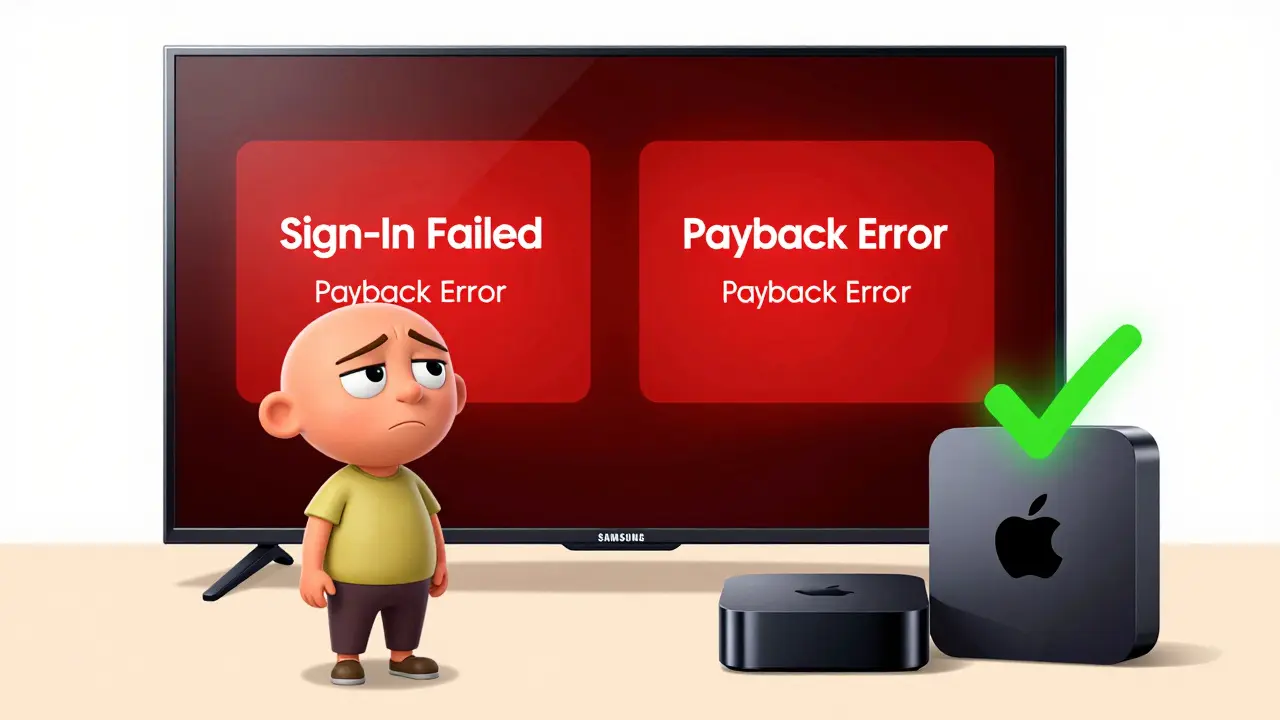
Playback Errors: “Playback Failed” or “Try Again Later”
This error usually means the video stream broke mid-transfer. It’s not always your fault. Apple’s servers sometimes glitch when delivering new episodes or during regional updates. But you can fix it locally.
Try these steps:
- Force quit the Apple TV+ app. Double-tap the Home button on your remote, swipe up on the Apple TV+ card, then reopen it.
- Clear the app cache. Go to Settings > Apps > Apple TV+ > Clear Cache. This removes corrupted temporary files.
- Update the Apple TV+ app. Go to the App Store, search for Apple TV+, and tap Update if available. Outdated versions cause compatibility bugs.
- Try a different title. If one show won’t play but another does, the issue is with that specific video file. Wait 24 hours - Apple usually fixes it on their end.
- Switch devices. Play the same show on your iPhone or iPad. If it works there, the problem is with your Apple TV hardware or software. If it fails everywhere, contact Apple Support.
Some users in Germany and Canada reported playback errors after updating tvOS to version 17.4. Apple patched it in 17.4.1. Make sure your Apple TV is running the latest software. Go to Settings > System > Software Updates.
Device-Specific Fixes
Not all devices handle Apple TV+ the same way. Here’s what to do if you’re using something other than an Apple TV box.
- On iPhone or iPad: Go to Settings > General > Storage > Apple TV+ > Offload App, then reinstall. This clears corrupted local data.
- On Samsung Smart TV: Update the TV’s firmware. Samsung’s Tizen OS sometimes blocks Apple’s streaming protocol. Check for updates under Settings > General > Software Update.
- On Roku: Uninstall and reinstall the Apple TV+ channel. Roku’s app store doesn’t always update correctly.
- On PlayStation or Xbox: Clear the system cache. Go to Settings > System > Storage > System Cache > Clear. Restart the console.
- On Windows or Mac: Use Safari. Chrome and Edge sometimes block Apple’s DRM. Safari has the best compatibility.
One user in Dublin switched from a Roku to an Apple TV 4K and said the difference was night and day - no buffering, no sign-in loops, no crashes. If you’re on a non-Apple device and keep having issues, consider switching to Apple TV hardware. It’s designed to work flawlessly with Apple’s services.

Prevention: How to Avoid These Problems in the Future
Most fixes are temporary. To stop this from happening again:
- Keep your Apple TV software updated. Enable automatic updates in Settings > System > Software Updates.
- Use a wired connection if possible. Ethernet beats Wi-Fi every time for streaming.
- Don’t share your Apple ID with more than five devices. Apple limits simultaneous streams to six, and overloading it causes sign-in conflicts.
- Use a dedicated network for streaming. Set up a guest Wi-Fi network just for your Apple TV and smart TVs. This avoids interference from phones, laptops, and smart home gadgets.
- Monitor your bandwidth usage. Use your router’s admin page (usually 192.168.1.1) to see which devices are hogging data.
Apple TV+ doesn’t have ads - but it does have a very strict DRM system. That’s why it’s sensitive to network changes, outdated apps, or device conflicts. Treat it like a high-performance system: keep it clean, updated, and on a stable connection.
Why does Apple TV+ keep saying "Sign-In Failed" even after I entered the right password?
This usually happens if your Apple ID is linked to a family plan that was canceled, or if two-factor authentication is blocking access due to a location change. Sign out completely, restart your device, then sign back in. Check your subscription status on your iPhone or computer. If you recently traveled, turn off 2FA temporarily to test - it’s a known workaround.
Can a slow internet connection cause Apple TV+ to stop playing?
Yes. Apple TV+ needs at least 25 Mbps for HD and 40 Mbps for 4K. If your speed test shows lower numbers, the video will buffer or drop. Move your Apple TV closer to the router, switch to 5 GHz Wi-Fi, or use an Ethernet cable. Also, pause downloads or gaming on other devices.
Why does Apple TV+ work on my phone but not my TV?
This usually means the TV’s software is outdated, the app is corrupted, or the Wi-Fi signal is weak. Update the TV’s firmware, clear the Apple TV+ app cache, and try switching from Wi-Fi to Ethernet. If it’s a non-Apple TV (like Samsung or Roku), the app may not be optimized - try reinstalling it.
Should I reset my Apple TV if nothing else works?
Only as a last resort. Resetting erases all your settings and apps. Try all other fixes first: restart, update, clear cache, switch networks. If you still can’t sign in or play content, then go to Settings > System > Reset > Reset and Update. You’ll need to log back in, but it often fixes deep software glitches.
Is Apple TV+ down right now?
Check Apple’s System Status page at apple.com/support/systemstatus. Look for the Apple TV+ icon. If it’s yellow or red, the issue is on Apple’s end. If it’s green, the problem is local to your device or network. Most outages are resolved within a few hours.
What to Do If Nothing Works
If you’ve tried all this and Apple TV+ still won’t play, sign in, or stop buffering, it’s time to contact Apple Support. But don’t call blindly. Have this ready:
- Your Apple ID and password
- Your Apple TV model number (found on the back or in Settings > About)
- The exact error message
- When the issue started
- What troubleshooting steps you’ve already tried
Apple’s support team has access to backend logs. They can see if your account is flagged, if your device is blocked, or if there’s a regional server issue. Most of the time, they can reset your access remotely. No need to replace your hardware - 9 out of 10 cases are software-related.
And remember: Apple TV+ is one of the most stable streaming services out there. When it breaks, it’s almost always because of something small - a setting, a network hiccup, or an outdated app. You don’t need to give up on it. Just follow the steps above, one at a time. Most people fix it in under 10 minutes.