
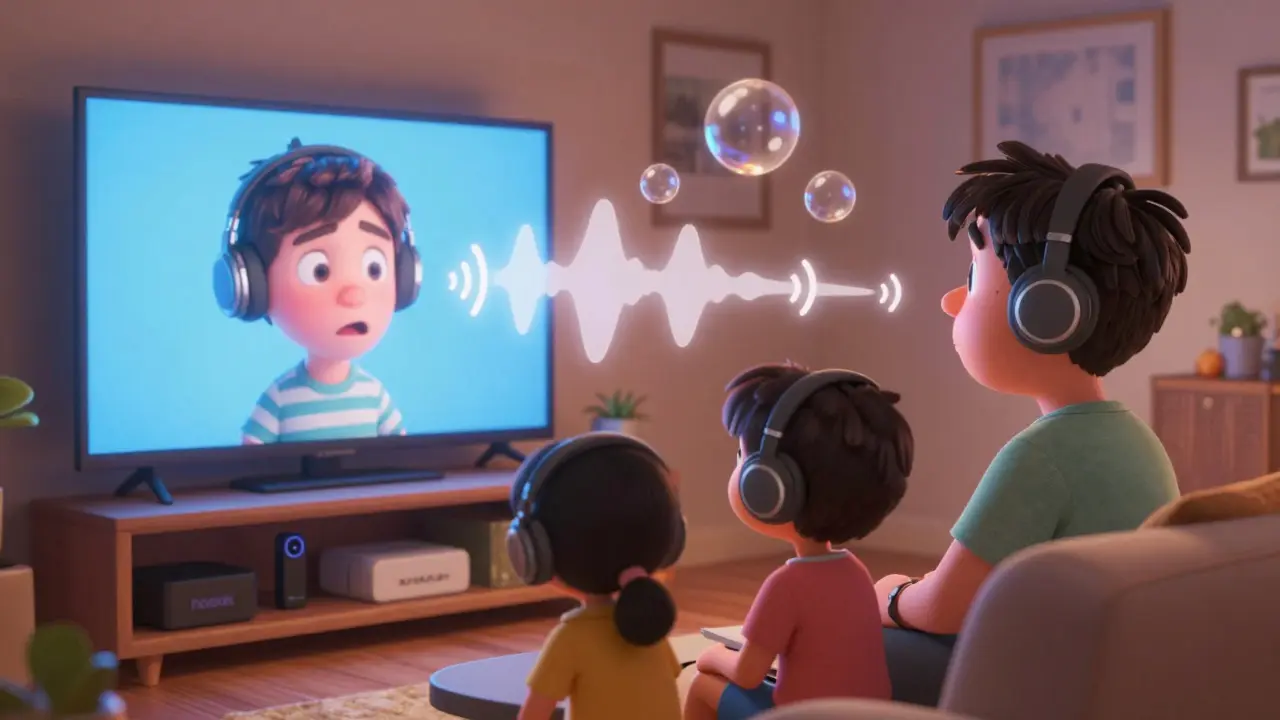
Nothing kills the vibe like watching your favorite scene on Netflix and hearing the actor’s mouth move half a second before the sound hits your ears. If you’re using Bluetooth headphones with a streaming device-whether it’s a Roku, Fire Stick, Apple TV, or smart TV-you’ve probably run into this. It’s not just annoying. It breaks immersion. And the fix isn’t always as simple as turning it off and on again.
Why Bluetooth Headphones Cause Lip-Sync Problems
Bluetooth headphones are wireless, which sounds great until you realize wireless doesn’t mean instant. Audio signals take time to travel from your streaming device to your headphones. This delay is called latency. While wired headphones have near-zero delay, Bluetooth adds anywhere from 100 to 300 milliseconds of lag. That’s enough to make dialogue feel out of sync, especially during fast-paced scenes or music-heavy sequences.
Streaming devices don’t always compensate for this. Most TVs and set-top boxes assume you’re using built-in speakers or wired headphones. They don’t automatically adjust for Bluetooth latency. So even if your device supports Bluetooth, it won’t fix the delay-it just sends the audio and hopes for the best.
How to Pair Bluetooth Headphones Correctly
Pairing isn’t just about turning on Bluetooth and selecting your headphones. The order matters. Here’s how to do it right:
- Turn off your streaming device (Roku, Fire Stick, etc.) and unplug it for 30 seconds.
- Put your Bluetooth headphones into pairing mode (refer to the manual-some need a long press, others a button combo).
- Plug your streaming device back in and power it on.
- Go to Settings > Bluetooth > Add Device.
- Select your headphones from the list.
- Once paired, play a video with clear dialogue (like a talk show or movie scene).
- If the audio is delayed, don’t stop-go straight to the next step.
Skipping the power cycle? That’s where most people fail. A simple reboot resets the audio buffer and forces the device to recognize the Bluetooth connection properly.
Fixing Lip-Sync Delay on Streaming Devices
Most modern streaming devices have an audio delay setting-but it’s buried. Here’s how to find it on the most common ones:
Amazon Fire Stick
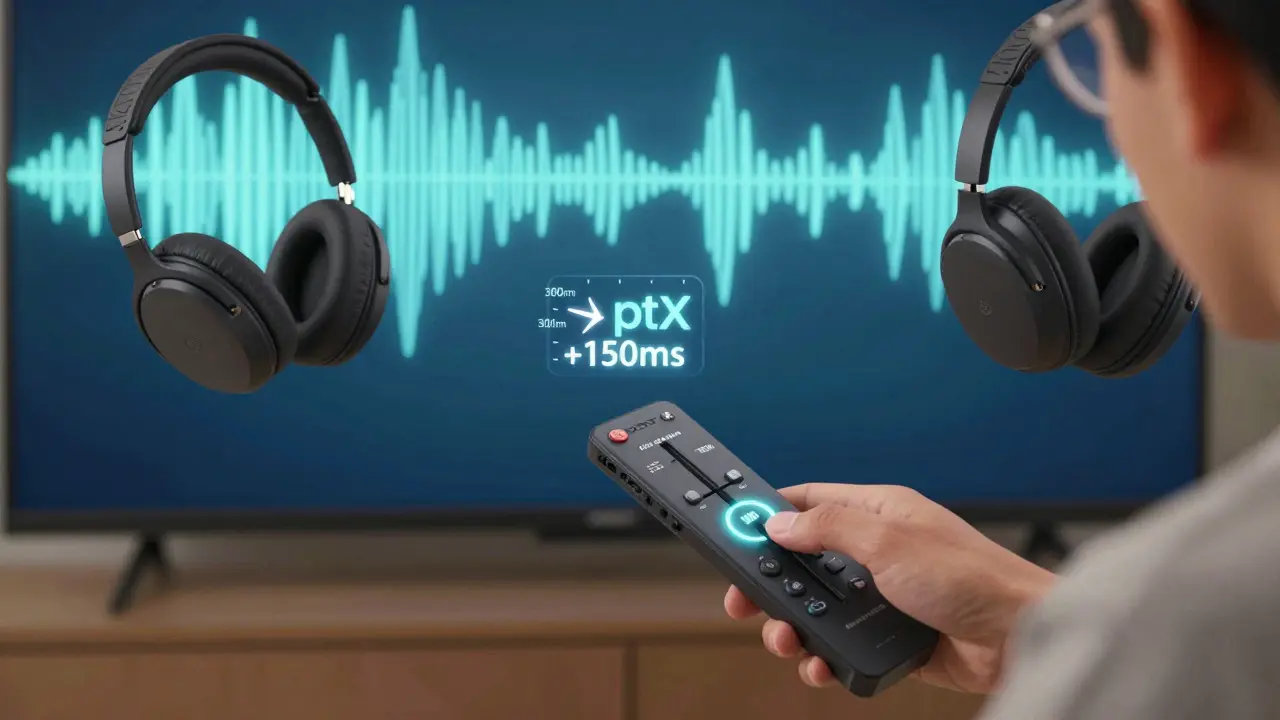
Go to Settings > Controllers and Devices > Bluetooth > Your Headphones > Audio Delay. Adjust the slider in 25ms increments. Start at +100ms and increase until the sound matches the mouth movement. Most users need between +150ms and +250ms.
Roku Devices
Press the Home button > Settings > Audio > Audio Delay. The range is from 0 to 300ms. Try +200ms first. If you’re still off, go up in 50ms steps. Roku doesn’t auto-detect Bluetooth latency, so manual adjustment is required.
Apple TV
Apple TV handles Bluetooth better than most. Go to Settings > Audio and Video > Audio Output > Bluetooth Headphones. Then scroll down to Audio Delay. It defaults to 0, but for Bluetooth, set it to +120ms. If you’re using AirPods, Apple’s firmware often auto-adjusts-so this step might not be needed.
Smart TVs (Samsung, LG, Sony)
Many smart TVs have a built-in Bluetooth audio delay setting. Look under Sound > Bluetooth Audio Delay. Some models label it as AV Sync or Audio Latency. If you can’t find it, try enabling Game Mode in Picture Settings. It reduces processing lag and often fixes audio sync too.
Why Some Headphones Work Better Than Others
Not all Bluetooth headphones are created equal when it comes to streaming. Here’s what to look for:
- Low-latency codecs: Look for headphones that support AAC, aptX Low Latency, or LDAC. These reduce delay to under 80ms. Standard SBC Bluetooth audio averages 200ms+.
- Device compatibility: Apple AirPods work best with Apple TV. Sony headphones with aptX work great with Fire Stick. Samsung Galaxy Buds pair well with Samsung TVs.
- Bluetooth version: Headphones with Bluetooth 5.0 or higher handle data more efficiently. Older versions (4.2 and below) are more likely to cause delays.
For example, Sony WH-1000XM5 and Bose QuietComfort Ultra both support aptX Adaptive and auto-adjust latency. They’re noticeably better for streaming than budget Bluetooth models that only use SBC.
When Nothing Works: The Wired Backup
If you’ve tried every setting and still have lag, it’s time to accept a hard truth: Bluetooth and streaming devices don’t always play nice. That’s why many AV enthusiasts still use wired headphones for movie nights.
Here’s a simple workaround:
- Buy a 3.5mm audio cable or a USB-C to 3.5mm adapter (depending on your streaming device).
- Plug your wired headphones directly into the device.
- Turn off Bluetooth on the device to avoid interference.
You lose wireless freedom, but you gain perfect sync. No delay. No tweaking. Just clean, crisp audio that matches the picture exactly.
Pro Tip: Use a Bluetooth Transmitter
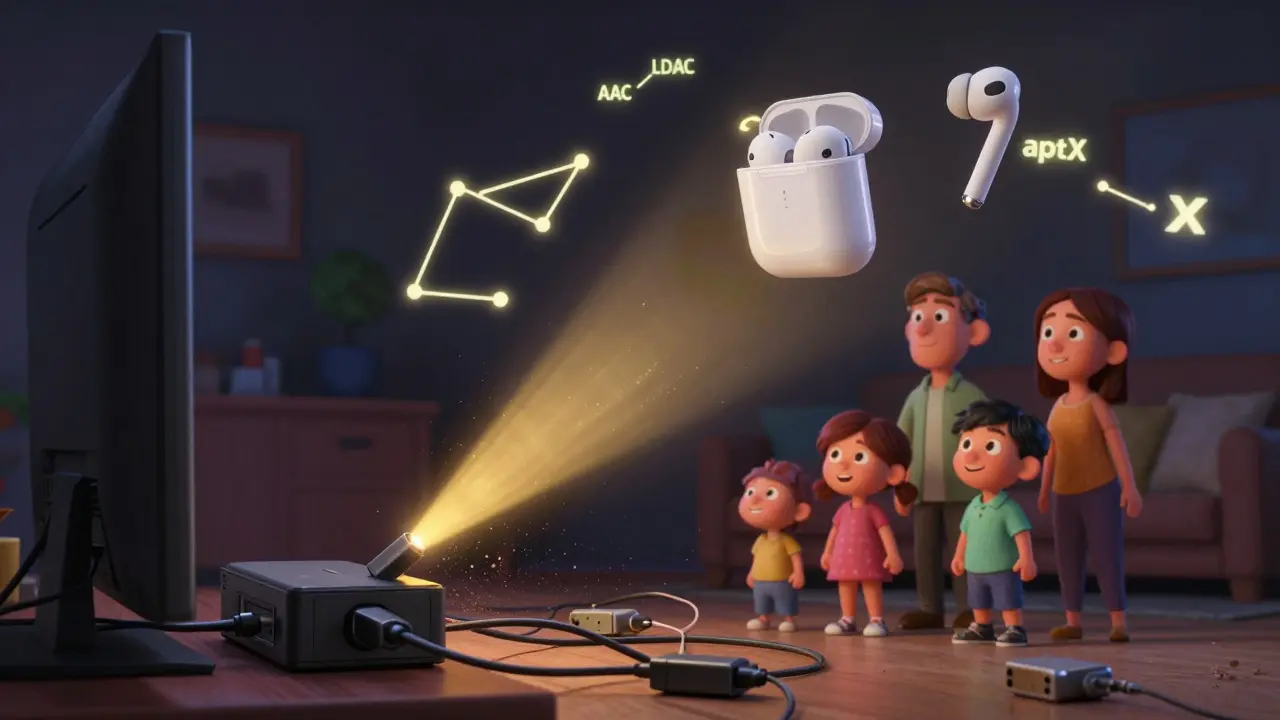
If you’re serious about wireless audio without the lag, skip pairing directly to the streaming device. Instead, use a dedicated Bluetooth audio transmitter.
These small devices plug into your TV or streaming box’s optical or 3.5mm audio jack. They send audio to your headphones using low-latency codecs like aptX LL. Brands like TaoTronics, Avantree, and Jabra make models under $50 that cut delay to under 40ms.
It’s the most reliable fix. And it works with any Bluetooth headphones-even older ones.
Final Checklist: Your 5-Minute Sync Fix
Stuck? Try this in order:
- Restart your streaming device and headphones.
- Check your device’s audio delay setting (Fire Stick, Roku, Apple TV).
- Set delay to +150ms as a starting point.
- Confirm your headphones support a low-latency codec (aptX, AAC, LDAC).
- If still off, try a Bluetooth transmitter.
- As a last resort, go wired.
There’s no magic button, but there is a method. Once you find the right combo for your gear, you’ll wonder why you ever put up with lag.
Why do Bluetooth headphones have audio delay with streaming devices?
Bluetooth headphones have audio delay because wireless transmission takes time. The signal travels from the streaming device to the headphones, and most consumer Bluetooth codecs aren’t designed for real-time video sync. This latency ranges from 100 to 300 milliseconds, which is noticeable during dialogue or action scenes. Wired connections avoid this because the signal travels directly through a cable with near-zero delay.
Can I fix lip-sync issues without buying new gear?
Yes. Most streaming devices have a manual audio delay setting. Try increasing it in 50ms increments (start at +150ms). Also, restart your device and headphones to reset the connection. Make sure your headphones support a low-latency codec like aptX or AAC. If those steps don’t work, a $30 Bluetooth transmitter plugged into your device’s audio jack can solve the problem without replacing your headphones.
Do all Bluetooth headphones cause lip-sync problems?
Not all. Headphones that use advanced codecs like aptX Low Latency, AAC, or LDAC have much lower delay-sometimes under 80ms. These are designed for video and gaming. Budget headphones that only use the standard SBC codec typically have delays over 200ms and are more likely to cause sync issues. Always check the specs before buying if you plan to use them with streaming devices.
Is it better to pair headphones directly to the streaming device or to the TV?
It depends. If your TV has a better Bluetooth stack and audio delay settings, pairing to the TV can work well. But many TVs don’t let you adjust audio delay at all. Streaming devices like Roku and Fire Stick have more precise controls. If your streaming device has a manual delay setting, pair directly to it. If not, pair to the TV and use its settings if available. If neither allows adjustment, use a Bluetooth transmitter instead.
Why does my audio sync improve when I turn on Game Mode?
Game Mode on TVs reduces image processing lag by turning off motion smoothing, noise reduction, and other enhancements that add delay. Since audio and video processing are linked, reducing video lag often helps audio sync too. It’s not a direct fix for Bluetooth delay, but it removes one layer of interference. Try it if you’re using a smart TV and can’t find an audio delay setting.