
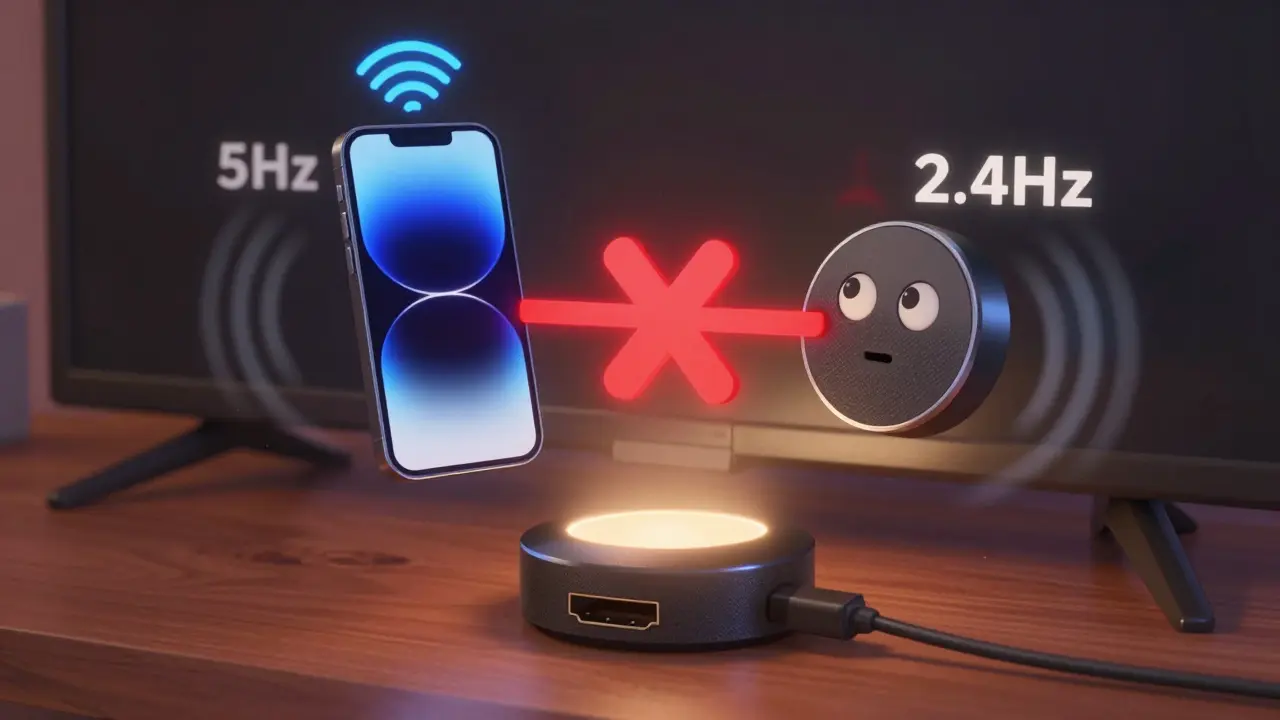
If your Chromecast won’t show up on your phone, tablet, or computer when you try to cast, you’re not alone. Thousands of users face this every day - and most of the time, it’s not a broken device. It’s a simple network hiccup, a settings glitch, or a software mismatch. The good news? You can fix it in under 10 minutes without calling support or buying a new stick.
Check Your Wi-Fi Network First
Chromecast doesn’t work like Bluetooth. It needs to be on the same Wi-Fi network as your casting device. That’s the #1 reason it disappears from the list. If your phone is on 5GHz and your Chromecast is stuck on 2.4GHz, they won’t find each other. Many routers now split these bands, and your phone might auto-switch without you noticing.
Open your phone’s Wi-Fi settings. Look at the network name. Does it end in “_5G” or “_2.4G”? If so, you’re on a split band. Turn off Wi-Fi on your phone, then reconnect to the main network name - the one without the suffix. Now try casting again.
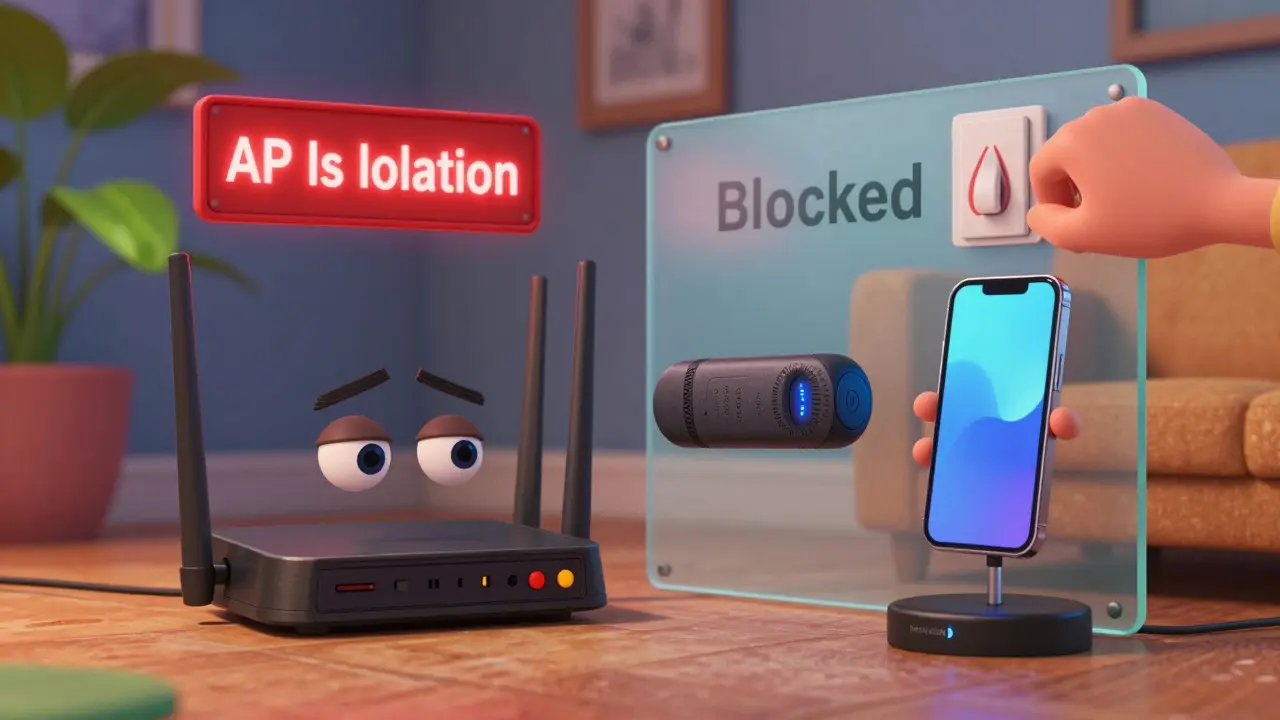
Also, check if your router has AP isolation enabled. This feature stops devices on the same network from talking to each other. It’s great for security in public hotspots, but it kills Chromecast. Log into your router’s admin panel (usually via 192.168.1.1 or 192.168.0.1), find the wireless settings, and turn off AP isolation or client isolation. Save and reboot.
Restart Your Chromecast and Router
A quick restart fixes 60% of casting problems. Unplug your Chromecast from the TV’s HDMI port and wait 30 seconds. Plug it back in. Wait another minute for it to fully boot. You’ll see the LED light turn solid white - that’s your cue.
Now do the same for your router. Unplug it, wait 60 seconds, plug it back in. Let it fully reconnect before trying to cast again. This clears cached network data and forces your devices to rediscover each other.
Don’t skip the router reboot. Many users think only the Chromecast matters, but if your router’s DHCP table is full or its DNS is glitching, your Chromecast won’t get a stable IP address. That makes it invisible to your phone or laptop.
Update the Google Home App and Chromecast Firmware
Outdated software is a silent killer. Open the Google Home app on your phone. Tap your Chromecast device. Scroll down to Device information. Check the firmware version. If it’s older than 1.50, an update is pending.
Even if the app says everything’s up to date, force-check: go to Settings > Device info > Check for updates. Google rolls out updates in waves, so sometimes you need to wait a few days - but if it’s been over a week, something’s wrong.
Also, make sure the Google Home app itself is updated. Go to your phone’s app store and check for updates. Old versions of the app often fail to detect newer Chromecast models, especially the 4K version released in 2024. The app needs to be version 5.8 or higher to reliably find it.
Reset Chromecast Network Settings
If your Chromecast used to work but suddenly stopped, it might have stored the wrong network credentials. Reset its network settings without resetting the whole device.
Hold down the button on the Chromecast for 25 seconds. The LED will blink orange, then turn solid white. This clears the Wi-Fi password but keeps your custom name and preferences. After the reset, open the Google Home app and go through the setup flow again. When prompted, select your Wi-Fi network and enter the password manually - don’t let it auto-fill from your phone’s saved networks.
This step fixes cases where the Chromecast remembers an old password after you changed your Wi-Fi key, or when it’s trying to connect to a hidden network it can’t see anymore.
Use a Different Casting Device
Is the problem with your Chromecast - or your phone? Test it with another device. Borrow a friend’s Android phone, or try casting from your laptop using Chrome browser.
Open Chrome. Click the three dots in the top-right. Select Cast. If your Chromecast shows up there, the problem is with your phone’s app or OS - not the hardware.
If it doesn’t show up on any device, the issue is likely your network or the Chromecast itself. If it shows up on one device but not another, focus on the device that’s failing. Try rebooting it, updating its OS, or reinstalling the casting app (YouTube, Netflix, etc.).
Disable IPv6 on Your Router
This one’s rare, but it’s a known issue with older routers and some ISP setups. Chromecast relies heavily on mDNS (multicast DNS) to discover devices on the local network. IPv6 can interfere with this protocol, especially if your router doesn’t handle it well.
Log into your router’s admin page. Look for IPv6 Settings. If it’s enabled, switch it to Disabled. Save and reboot. After the router restarts, try casting again. Many users in Europe and North America have reported instant fixes after disabling IPv6 - even if their internet speed didn’t change.
Check for Interference from Other Devices
Smart home gadgets, baby monitors, microwave ovens, and even LED light strips can interfere with Wi-Fi signals - especially on the 2.4GHz band that Chromecast uses. If you’ve added new devices to your home recently, try turning them off one by one to see if casting improves.
Move your Chromecast away from metal surfaces or thick walls. If it’s plugged into the back of your TV, try using the HDMI extender that came with it. That gives it more breathing room and better antenna access.
Also, avoid using USB power adapters that aren’t rated for 1.5A or higher. Cheap chargers can cause power fluctuations that make the Chromecast reboot randomly or drop its connection.
Try Casting from a Different App
Not all apps support casting the same way. YouTube and Netflix use Google’s Cast SDK and usually work fine. But some third-party apps - like Plex, Kodi, or local media players - use different protocols that can cause discovery failures.
Test with YouTube first. If YouTube casts successfully, the issue isn’t your Chromecast. It’s the app you’re trying to use. Update that app, or check its settings for a Cast or Send to TV option. Some apps hide casting behind a menu labeled Share or More.
Factory Reset Chromecast (Last Resort)
If nothing else works, do a full factory reset. Hold the button for 25 seconds until the LED blinks orange, then keep holding until it flashes white rapidly. This wipes everything - settings, Wi-Fi, even your custom name.
Now set it up from scratch in the Google Home app. Don’t use your phone’s saved Wi-Fi password. Type it manually. Choose your network carefully. If you have dual-band Wi-Fi, pick the 2.4GHz network - it has better range and is more reliable for casting.
After setup, test with YouTube. If it works, your Chromecast is fine. The problem was likely a corrupted setting or a bad network profile.
When to Replace Your Chromecast
Chromecast devices have a lifespan. If yours is older than 2018, it’s running on outdated hardware and software. Google stopped pushing updates to first- and second-gen models in 2022. Even if you fix the connection, you’ll keep running into compatibility issues with newer apps and services.
Consider upgrading to a Chromecast with Google TV (2024 model). It’s faster, supports 4K HDR, and runs a full Android TV OS. It also has better Wi-Fi antennas and handles network changes more gracefully. For under €50, it’s a better long-term solution than fighting a dying device.
Quick Checklist: Chromecast Not Casting?
- ✅ Both device and Chromecast on the same Wi-Fi network
- ✅ AP isolation turned OFF on your router
- ✅ Chromecast and router both restarted
- ✅ Google Home app and Chromecast firmware updated
- ✅ Chromecast network settings reset
- ✅ IPv6 disabled on router (if available)
- ✅ Tested casting from another device or app
- ✅ No nearby devices causing interference
- ✅ Factory reset performed if all else fails
If you’ve gone through all these steps and it still won’t cast, your Chromecast hardware might be failing. Try it on another TV. If it behaves the same, it’s time for a replacement.
Why does my Chromecast disappear from the casting list?
It usually means your phone and Chromecast aren’t on the same Wi-Fi network. Check if your router splits 2.4GHz and 5GHz bands - your phone might be on one, and the Chromecast on the other. Also, AP isolation or IPv6 conflicts can block device discovery.
Can I cast without Wi-Fi?
No. Chromecast requires a Wi-Fi connection to receive instructions from your phone or computer. It doesn’t use Bluetooth or direct screen mirroring like some other devices. Without Wi-Fi, it’s just a HDMI stick with no signal.
Why does it work on my laptop but not my phone?
Your phone’s OS or app might be outdated. Android and iOS handle casting differently than Chrome on desktop. Try updating your phone’s OS, reinstalling the casting app (like YouTube or Netflix), or clearing the app’s cache. Also, check if your phone is on a different Wi-Fi band than your Chromecast.
Does a weak Wi-Fi signal cause casting problems?
Yes. Chromecast needs a stable signal, especially for HD or 4K content. If your Wi-Fi signal is below -70dBm at the TV, buffering and disconnections are likely. Move your router closer, use a Wi-Fi extender, or plug the Chromecast into the HDMI extender to improve antenna reception.
Should I buy a new Chromecast if mine is old?
If your Chromecast is older than 2018, yes. Google stopped software updates for those models in 2022. Newer apps won’t support them properly, and even if you fix the connection, you’ll keep running into bugs. A new Chromecast with Google TV costs less than €50 and works better with modern streaming services.