
Ever been on a live stream and noticed your green screen looks patchy? Like your head is half-cut out, or your sleeve is flickering into the background? It’s not just you. Most people set up a green screen, turn on the chroma key in OBS, and expect magic. But without the right tweaks, you end up with a janky, unnatural look that distracts viewers instead of impressing them. The good news? Getting a clean, professional green screen key in OBS isn’t about buying expensive gear-it’s about knowing what settings to adjust and which plugins actually work.
Why Your Green Screen Still Looks Bad
You’ve got a green backdrop, a decent camera, and OBS installed. So why does your key still look like a bad 2005 YouTube video? The problem isn’t your camera. It’s lighting. Most people think green screens are about the color-it’s not. It’s about lighting. A green screen needs even, soft light from at least two angles. If one side is darker, OBS can’t tell where the green ends and your body begins. That’s why your hair or shirt edges disappear or flicker.Another common mistake? Using a cheap, wrinkled green fabric. A matte, non-reflective green screen (like a muslin or painted wall) works best. Shiny surfaces bounce light unevenly, creating hotspots that confuse the chroma key filter. Even a $30 roll of green paper taped to a wall can outperform a $200 collapsible backdrop if it’s lit right.
Setting Up OBS for a Clean Key
Open OBS and add your camera as a source. Then right-click it, go to Filters, and click the + button. Choose Chroma Key. Now you’ll see three sliders: Key Color, Similarity, and Spill Suppression.Start with the Key Color. Click the eyedropper and click on your green background-not your skin, not your shirt, not the edge. Pick a flat, even part. OBS will instantly remove that color. If you still see green halos, move to Similarity. This controls how wide the color range is. Start at 70%. If your edges are jagged, increase it slowly. Go too high, and you’ll start removing parts of your shirt. Most people get the best results between 75% and 85%.
Now for Spill Suppression. This removes the green tint that reflects onto your skin or clothes. Turn it on and set it to 0.25. If your face looks too pale or gray, dial it down. If you still see a greenish glow around your shoulders, bump it up to 0.4. This one setting alone can make your skin look natural instead of like a cartoon character.
Plugins That Actually Help
OBS’s built-in chroma key is fine for basic use. But if you’re serious about streaming, you need plugins. Two stand out: Chroma Key Advanced and Color Correction.Chroma Key Advanced (available via OBS Studio plugin manager) gives you fine-tuned controls. You can adjust the Edge Smoothing radius, use Luma Key for low-light situations, and even mask out areas like your hair or glasses. It’s not automatic, but it’s precise. I’ve used it to stream live from my apartment in Dublin with a window behind me-and the key stayed clean even when sunlight hit the green screen.
Color Correction is a must-have companion. It lets you adjust brightness, contrast, and saturation before the key runs. Why? Because if your green screen is too dark or too saturated, the chroma key filter struggles. Use this filter first in your list. Lower saturation by 10-15% to reduce noise. Boost contrast slightly to make the green pop. Then let Chroma Key Advanced do its job.
Lighting That Works
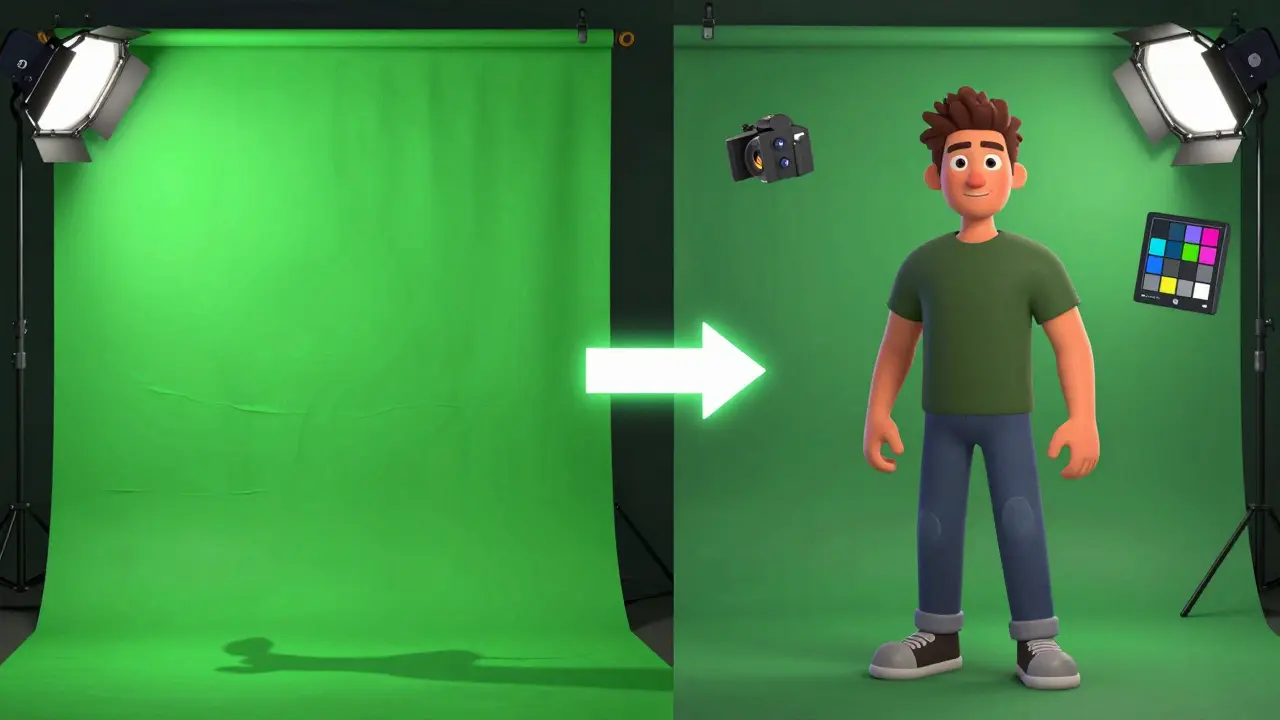
Lighting is the silent hero of green screen streaming. You don’t need a Hollywood setup. Two affordable LED panels (like the Aputure Amaran COB 120d or even a $50 Amazon kit) placed at 45-degree angles on either side of your screen will do wonders. Avoid overhead lights-they cast shadows on the backdrop. If you’re on a budget, use two desk lamps with soft white bulbs and white diffusion paper over them.Test your lighting with your camera. Turn on the chroma key filter and look at the preview. If you see dark patches or color shifts, adjust. A perfectly lit green screen should look like one solid, even color with no shadows. If your skin tone looks greenish, your lighting is too close or too bright.
Backgrounds That Don’t Look Fake
A clean key means nothing if your background looks like a stock photo. Don’t just slap in a random YouTube video. Use dynamic backgrounds. OBS supports Browser Source with HTML5 animations. Try Pexels or Mixkit for free 4K looping videos. A subtle cityscape with moving lights, or a soft gradient that shifts slowly, adds depth. Avoid fast-moving backgrounds-they’ll make viewers dizzy.Pro tip: Add a slight blur to your background source. Go to Filters on the background video, add a Box Blur with a radius of 5. It makes the background feel farther away and reduces the "cut-out" look.
Common Mistakes and How to Fix Them
- Green fringe around hair: Use Chroma Key Advanced’s Edge Smoothing and increase it to 5-7 pixels. Turn on Chroma Key Noise Reduction if available.
- Background flickering: Check your camera’s exposure. Use manual mode. Set ISO to 400 or lower. Lock the shutter speed to 1/50 or 1/60. Auto exposure kills consistency.
- Transparent patches: Your green screen has shadows. Add a third light behind the screen, pointing at the backdrop. This fills in shadows without hitting you.
- Too much green on skin: Use Spill Suppression. Then, in Color Correction, slightly reduce the green channel by 5-10%.
Final Checklist Before You Go Live
- Green screen is flat, even, and wrinkle-free.
- Two lights at 45° angles hit the screen-not you.
- Camera is on manual: ISO 400, shutter 1/50, white balance set.
- Chroma Key filter: Key Color picked from flat green, Similarity at 80%, Spill Suppression at 0.3.
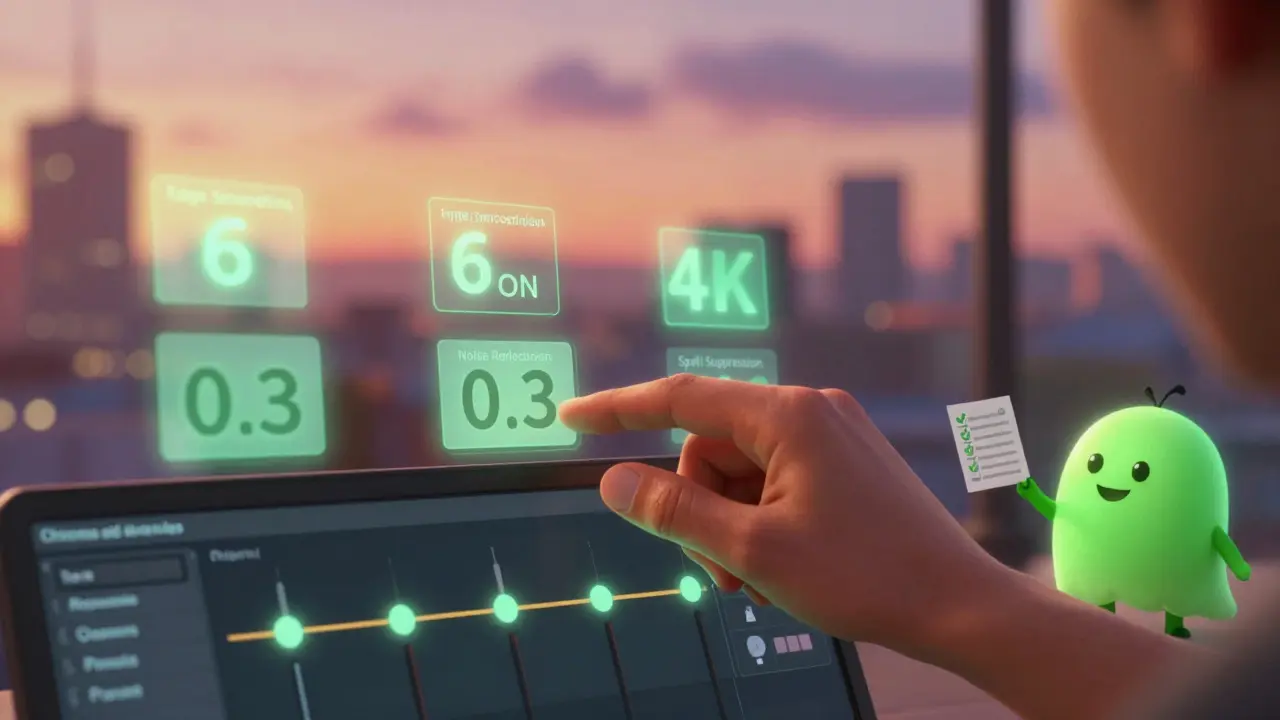
- Chroma Key Advanced installed and set to Edge Smoothing: 6, Noise Reduction: On.
- Color Correction filter before Chroma Key: Saturation down 10%, Contrast up 5%.
- Background is a soft, slow-moving video with 5px blur.
- Test stream for 5 minutes. Watch for flickering, edge tearing, or green halos.
If you follow this, your green screen will look like it belongs on a TV show-not a Zoom call. No fancy gear. No expensive software. Just smart settings and real lighting.
Do I need a green screen to stream?
No, but if you want to replace your background with anything other than your messy room, then yes. You can use OBS’s image or video source instead, but a green screen gives you full control over your background without needing to move furniture or clean up.
Can I use a blue screen instead?
Yes. Blue screens work well if you’re wearing green clothes or have green elements in your setup. But green is usually better because most cameras capture green with more detail and less noise. Unless you’re wearing green, stick with green.
Why is my key still flickering even after adjusting settings?
Flickering usually comes from inconsistent lighting or auto-exposure on your camera. Switch to manual mode. Lock your exposure, ISO, and white balance. Also, make sure your lights aren’t on a dimmer or smart bulb-they can pulse slightly, which the camera picks up as color changes.
What’s the best green screen material for beginners?
A matte green fabric roll from Amazon or a painted wall with flat latex paint. Avoid shiny or metallic backdrops. The goal is to absorb light, not reflect it. A $25 muslin cloth stretched tight on a frame works better than a $100 collapsible one if it’s wrinkled.
Do I need a plugin to get a clean key?
Not always. OBS’s built-in chroma key works fine for simple setups. But if you’re streaming regularly, want to remove fine details like hair, or deal with uneven lighting, Chroma Key Advanced gives you the control you need. It’s free and easy to install.