
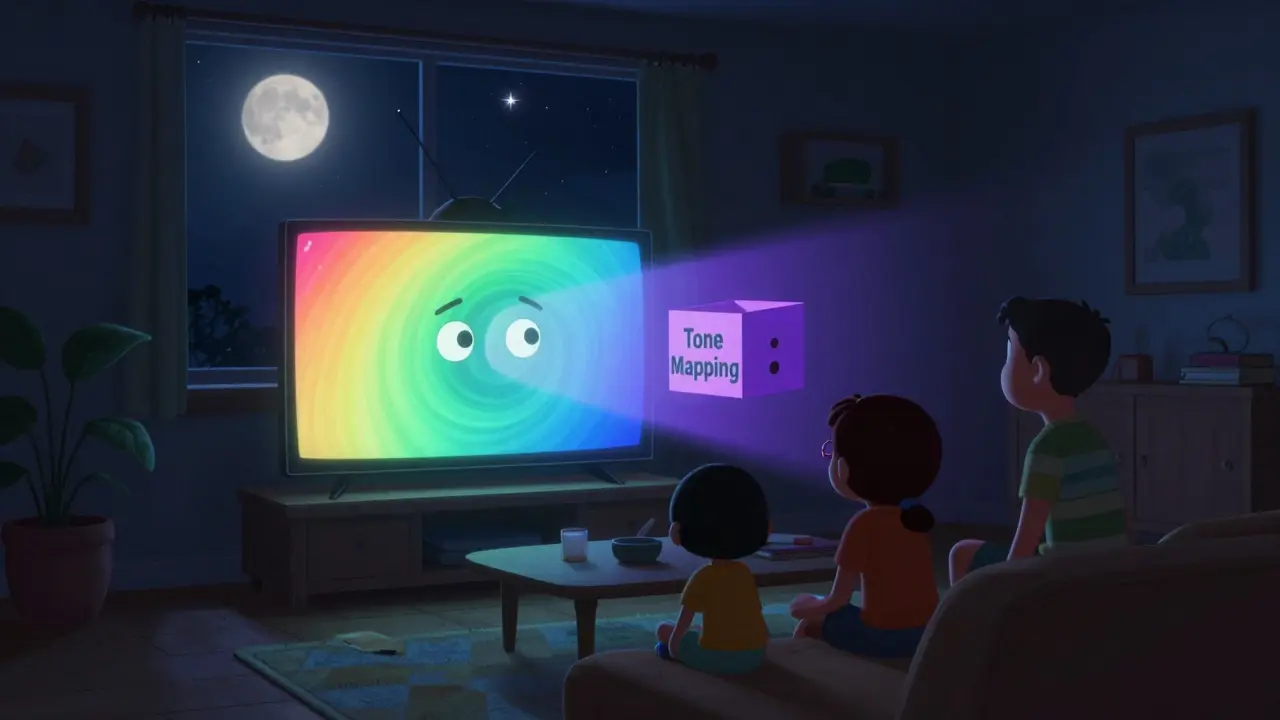
Ever sat down to watch a new season of your favorite show on Netflix, Apple TV+, or Disney+, only to find the whole screen feels like it’s buried under a blanket? The colors are there, the details are supposed to be stunning-but everything’s just too dark. You crank up the brightness on your remote, but it barely helps. This isn’t your TV breaking. It’s tone mapping-and it’s doing its job too well.
Why HDR Looks Too Dark on Streaming
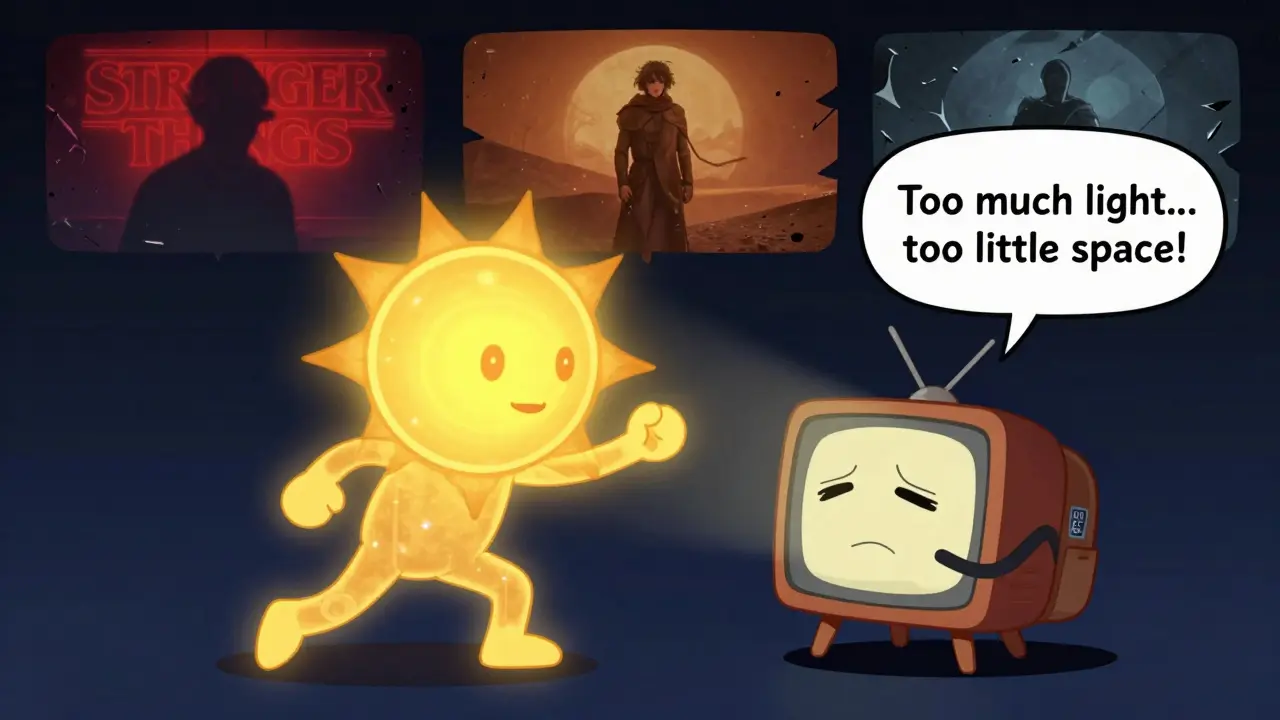
High Dynamic Range (HDR) video is designed to show a wider range of brightness than standard HD. Think sunlight reflecting off a car hood, the glow of a candle in a dark room, or the deep blacks of a night sky. But here’s the catch: not all TVs can show the full range of HDR brightness. Most mid-range and even some high-end TVs max out at 600 to 1,000 nits of peak brightness. Meanwhile, many HDR10+ and Dolby Vision titles are mastered at 4,000 nits or higher.
When your TV gets a signal meant for a 4,000-nit screen but can only hit 800 nits, it has to compress all that light into a smaller range. That’s tone mapping. It’s like trying to fit a full backpack into a purse-you lose some detail, and if the algorithm is too aggressive, shadows get crushed and mid-tones disappear. The result? A scene that looks flat, muddy, and way darker than it should.
Streaming services don’t know your exact TV model. They send one master file to everyone. Your TV then tries to adapt it. Some TVs do this better than others. Samsung’s QLEDs, LG’s OLEDs, and Sony’s Bravia X90 series handle tone mapping with more precision than budget models. But even on premium sets, the default settings can be too conservative.
How to Fix HDR Brightness: Step-by-Step
You don’t need to buy a new TV. You just need to tweak a few settings. Here’s what actually works.
- Switch from ‘Standard’ to ‘Movie’ or ‘Cinema’ mode-many TVs default to a dim, low-contrast preset that mimics theater lighting. But in your living room, that’s killing HDR. Movie mode often preserves more brightness and contrast.
- Turn off ‘Eco Sensor’ or ‘Ambient Light Detection’-these features dim the screen automatically based on room lighting. They’re meant to save power, but they ruin HDR. Disable them completely.
- Enable ‘HDR+’ or ‘Dynamic Tone Mapping’-brands like Samsung, LG, and TCL have their own names for this. It’s a smarter version of tone mapping that adapts frame by frame instead of using one static curve. You’ll see more detail in dark scenes without washing out highlights.
- Set backlight (LED TVs) or OLED brightness to max-on LED TVs, the backlight control is your main tool. Push it to 80-100%. On OLEDs, use the ‘OLED Light’ setting (not brightness) and bump it to 70-85%. Don’t fear burn-in-modern OLEDs handle this fine with normal use.
- Disable ‘Motion Smoothing’-yes, it’s unrelated to brightness. But motion interpolation can make HDR look artificial, especially in fast scenes. Turn it off for a more natural image.
After making these changes, watch a known HDR reference scene. Try the opening of Stranger Things Season 4 (the Upside Down tunnel), the desert scenes in Dune, or the night sky in The Midnight Sky. If the shadows still look crushed, you might need to adjust contrast next.
Contrast vs. Brightness: What’s the Difference?
Most people confuse these two. Brightness controls black level. Contrast controls the gap between black and white. If your screen looks gray instead of black, you need to lower brightness. If shadows are flat and details are missing, you need to raise contrast.
Try this: play a scene with deep shadows-like a character walking into a dark room. Lower brightness until the blacks look truly black, not gray. Then slowly increase contrast until you start seeing texture in the shadows-fabric folds, wall cracks, tree branches. Stop before highlights start blowing out. You’re aiming for detail, not punch.
On LG OLEDs, use the ‘Contrast’ setting (not ‘Brightness’) to adjust this. On Samsung QLEDs, the ‘Contrast’ slider does the same job. Don’t touch ‘Gamma’ unless you’re calibrating with a meter-leave it at 2.2.
Streaming Source Matters Too
Not all HDR content is created equal. Netflix’s HDR10+ titles (like The Crown or Stranger Things) are usually better mastered than Dolby Vision on Apple TV+, which sometimes oversaturates and crushes shadows. Disney+ has been inconsistent-some shows look great, others look like they were downgraded.
Check what format your stream is using. On Apple TV, go to Settings > Videos > Audio and Video > Show Information. On Roku, press the * button during playback. If it says ‘HDR10’ or ‘Dolby Vision,’ you’re getting the real deal. If it says ‘SDR’ or ‘H.264,’ you’re stuck with standard definition, even if the app says HDR.
Also, make sure you’re streaming at the highest quality. In Netflix settings, set ‘Video Quality’ to ‘High’ and ensure your internet speed is over 25 Mbps. Lower bitrates compress HDR data, killing detail and making dark scenes look even darker.
TV Firmware Updates Can Fix This
Many manufacturers quietly improve tone mapping through software updates. A 2024 LG OLED firmware update added a new ‘HDR Brightness’ slider for Dolby Vision. Samsung rolled out a similar tweak for QN90B models in late 2025. Check your TV’s settings menu for ‘System Update’-even if it says you’re up to date, restart the TV and check again. Sometimes the update server doesn’t trigger immediately.
For older TVs (2019 and earlier), third-party calibration tools like CalMAN or HCFR can help, but they’re expensive and complex. For most users, sticking to the built-in presets and manual tweaks is enough.
When to Call It a Day
If you’ve tried every setting, updated firmware, checked your stream quality, and it still looks too dark-you might be fighting hardware limits. TVs under 600 nits of peak brightness simply can’t show HDR as intended. You’ll always lose shadow detail.
That’s not a flaw in your setup. It’s a limitation of the panel. If you’re serious about HDR, consider upgrading to a TV with at least 1,000 nits (LED) or true black levels with 800+ nits (OLED). Models like the LG C3, Samsung QN90C, or Sony X90K are still widely available and deliver far better HDR performance than budget panels.
Quick Checklist: Your HDR Brightness Fix
- Turn off Eco Sensor / Ambient Light Detection
- Switch picture mode to Movie/Cinema
- Enable Dynamic Tone Mapping (or HDR+)
- Max out Backlight (LED) or OLED Light setting
- Adjust Contrast to reveal shadow detail
- Disable Motion Smoothing
- Confirm you’re streaming HDR10+ or Dolby Vision
- Ensure internet speed >25 Mbps
- Update TV firmware
If you follow these steps, your HDR content will look closer to what the filmmakers intended. No more guessing. No more dim screens. Just rich, detailed, vibrant pictures that pop-without turning your living room into a cave.
Why does my HDR content look darker than the trailer?
Trailers are often color-graded to look flashy and attention-grabbing. They use brighter highlights and lifted shadows to stand out. The actual show or movie is mastered for a more balanced, cinematic look. Your TV’s default settings may also be too dim. Adjusting brightness, contrast, and enabling dynamic tone mapping will bring your viewing closer to the intended look.
Does turning up brightness fix HDR too dark?
Not always. Brightness controls how dark the blacks appear. If your blacks look gray, increasing brightness helps. But if shadows are flat and lack detail, you need more contrast, not more brightness. Raising brightness too high can wash out colors and make dark scenes look washed out. Use contrast to bring out shadow detail, and brightness only to deepen true black.
Is OLED better for HDR than LED?
Yes, for most users. OLED TVs have perfect blacks because each pixel turns off independently. This makes HDR scenes feel more immersive, even if peak brightness is lower than some high-end LED TVs. LED TVs rely on backlighting, which can cause blooming (glow around bright objects). But if you watch in a very bright room, a high-nit LED (1,000+ nits) may look brighter overall. For dark-room viewing, OLED wins.
Why does my TV change brightness during a show?
This is usually caused by ambient light sensors or dynamic contrast features. These settings adjust brightness based on the scene’s average luminance. While they save power, they ruin HDR by dimming scenes with dark backgrounds. Turn off any ‘Eco,’ ‘Ambient,’ or ‘Dynamic Contrast’ settings in your picture menu.
Do I need a special HDMI cable for HDR?
No. Any HDMI 2.0 or newer cable can carry HDR. You don’t need expensive ‘4K’ or ‘HDR’ labeled cables. As long as your cable works for 4K video, it’s fine. The issue is almost always in the TV settings, not the cable.