Stopping your Apple TV+ subscription is easier than you think-no calls, no waiting on hold, no complicated menus. If you’re done watching Apple TV+ and want to cancel, you can do it in under two minutes using your iPhone, iPad, Mac, or even a web browser. No need to keep paying for content you’re not using. Here’s exactly how to do it, step by step.
Why You Might Want to Cancel Apple TV+
Apple TV+ is a solid streaming service with original shows like Severance, Ted Lasso, and The Morning Show. But it’s not for everyone. Maybe you’re not watching enough to justify the €8.99/month price. Or maybe you got it bundled with another Apple service and forgot you had it. Some people cancel because they’re already subscribed to Netflix, Disney+, or Prime Video and don’t need another one. Others just want to cut back on monthly subscriptions. Whatever your reason, canceling Apple TV+ is straightforward-and you won’t lose access until the end of your current billing period.How to Cancel Apple TV+ on iPhone or iPad
This is the most common way people cancel. If you use an iPhone or iPad, follow these steps:- Open the Settings app.
- Tap your name at the top of the screen.
- Select Subscriptions.
- Find Apple TV+ in the list and tap it.
- Tap Cancel Subscription.
- Confirm when asked. You’ll still have access until your current billing cycle ends.
You’ll see a message saying your subscription will end at the end of the current period. No refunds are given for partial months, but you won’t be charged again. This method works whether you signed up on your phone, tablet, or even through a web browser.
How to Cancel Apple TV+ on Mac
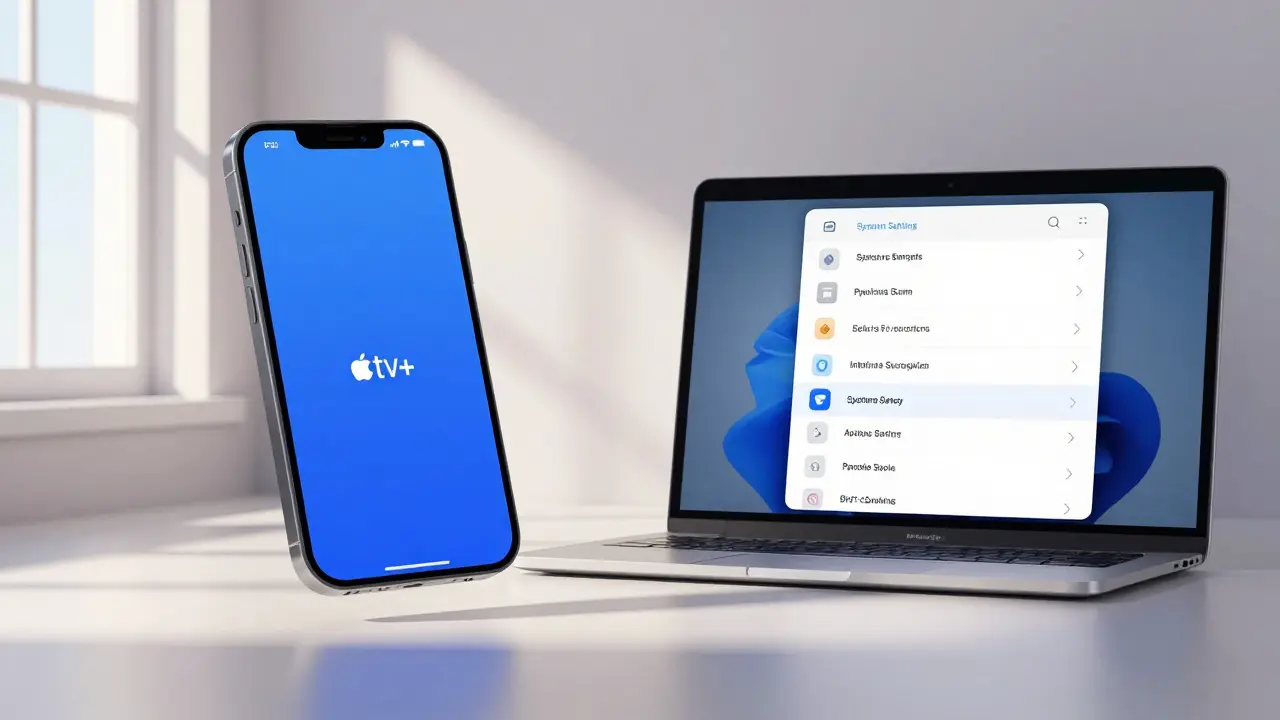
If you’re using a Mac, the process is almost identical:- Open the Apple Menu (the apple icon in the top-left corner).
- Select System Settings.
- Click on your name at the top.
- Go to Subscriptions.
- Find Apple TV+ and click it.
- Click Cancel Subscription.
- Confirm your choice.
That’s it. Your Apple TV+ access will continue until the end of your current billing period, then stop automatically.
How to Cancel Apple TV+ on a Web Browser
You don’t need an Apple device to cancel. You can do it from any computer using a browser:- Go to appleid.apple.com and sign in with your Apple ID.
- Scroll down to the Subscriptions section.
- Click Manage next to Apple TV+.
- Click Edit next to your subscription.
- Select Cancel Subscription.
- Confirm the cancellation.
This method is useful if you signed up using a computer, or if you don’t have your iPhone handy. It’s also the only way to cancel if you’re using a shared Apple ID.
What Happens After You Cancel?
After you cancel, you’ll still be able to watch Apple TV+ until your current billing period ends. For example, if you paid on March 1 and cancel on March 10, you’ll keep access until March 31. No one will charge you again after that. You won’t get a refund for the unused portion, but you also won’t be charged for the next cycle.Once your subscription ends, you’ll lose access to new episodes and original content. You can still watch anything you downloaded for offline viewing, but only until the license expires-usually within 48 hours after your subscription ends. Your viewing history and saved shows won’t disappear immediately, but they’ll be removed if you don’t re-subscribe within a few months.
Can You Re-Subscribe Later?
Yes. If you change your mind later, you can turn Apple TV+ back on anytime. Just go to the Apple TV app, tap your profile picture, and select Subscribe next to Apple TV+. You’ll be charged the current rate (€8.99/month as of 2026). You won’t get your old library back automatically-your watch history and saved shows are stored for 90 days after cancellation. After that, they’re gone unless you re-subscribe.Common Mistakes to Avoid
People often think canceling the Apple TV app removes the subscription. It doesn’t. The app is just a viewer-you can delete it, but the subscription stays active. Another mistake is assuming you can cancel through the Apple TV app itself. That’s not possible. You must go through your Apple ID settings.Also, don’t confuse Apple TV+ with Apple TV (the device). The Apple TV box or app doesn’t come with a subscription. You pay separately for Apple TV+. If you’re unsure whether you’re paying for it, check your Apple ID billing history under Payment & Shipping in Settings.

What About Family Sharing?
If you’re part of a Family Sharing group and the subscription is paid by someone else, you can’t cancel it yourself. Only the account owner can cancel. You can, however, turn off your access by going to Family Sharing > Apple TV+ > Stop Sharing. This stops you from watching, but the subscription continues. If you want it canceled entirely, you’ll need to ask the family organizer to do it.Is There a Refund?
Apple doesn’t offer automatic refunds for canceled subscriptions. If you were charged by mistake-say, you didn’t realize you had a trial or you were billed twice-you can request a refund. Go to reportaproblem.apple.com, sign in, find the charge, and click Report a Problem. Then choose I didn’t authorize this purchase or Other Issue. Apple usually responds within 24-48 hours. Most refund requests are approved if they’re reasonable.What If You Can’t Find the Subscription?
If you don’t see Apple TV+ in your subscriptions list, it might mean:- You never subscribed-maybe you only tried a free trial.
- You canceled it already.
- You’re signed in with the wrong Apple ID.
To check, look at your Apple ID email in Settings > [Your Name]. If you’re still unsure, check your email for a receipt from Apple. Search your inbox for "Apple TV+" or "Apple Subscription." That’ll tell you if you’re being billed.
Final Tip: Set a Reminder
If you’re thinking about canceling but want to give it one more month, set a calendar reminder for the day before your next billing date. That way, you won’t forget. And if you change your mind later, you can always re-subscribe.Can I cancel Apple TV+ without an Apple device?
Yes. You can cancel Apple TV+ from any web browser by going to appleid.apple.com, signing in with your Apple ID, and managing your subscriptions under the Subscriptions section. You don’t need an iPhone, iPad, or Mac to do it.
Will I get a refund if I cancel mid-billing cycle?
No, Apple doesn’t issue partial refunds when you cancel a subscription. However, you’ll keep access to Apple TV+ until the end of your current billing period. For example, if you paid on March 1 and cancel on March 10, you’ll still be able to watch until March 31.
Can I cancel Apple TV+ through the Apple TV app?
No. The Apple TV app only lets you watch content. You can’t manage or cancel subscriptions from within the app. You must go through your Apple ID settings on iPhone, iPad, Mac, or via the web.
What happens to my downloaded shows after I cancel?
You can watch downloaded shows for up to 48 hours after your subscription ends. After that, they’ll no longer play. Your watch history and saved shows remain on Apple’s servers for 90 days, but you won’t be able to access them unless you re-subscribe.
If I’m part of a Family Sharing plan, can I cancel Apple TV+ myself?
No. Only the family organizer who pays for the subscription can cancel it. You can stop using it by turning off sharing in Family Settings, but the subscription will continue unless the organizer cancels it.