
Every parent knows the struggle: you want to relax with a show, but your kid grabs the remote and suddenly you’re watching a 45-minute video of a dancing banana with a voice that sounds like a squeaky toy. It’s not just annoying-it’s exhausting. And if you’re using Roku, Fire Stick, or any other streaming device without a kids profile, you’re leaving your child exposed to content that’s not age-appropriate, sometimes even violent or scary.
The good news? Setting up a kids profile on these devices is simple, fast, and totally free. You don’t need to buy extra gear or subscribe to another service. All you need is the device you already own and about five minutes to lock it down.
Why Kids Profiles Matter
Streaming services don’t know who’s watching. If your 7-year-old picks up the remote, the algorithm doesn’t pause and say, “Oh, this is a child.” It shows them whatever’s trending, whatever’s popular, whatever’s algorithmically likely to keep someone glued to the screen. That could mean horror trailers, adult jokes, or ads for toys they don’t need.
Kids profiles change that. They’re not just filters-they’re customized environments. When you set one up, the device blocks mature content, hides search bars, disables autoplay for inappropriate shows, and only surfaces content rated for kids. It’s like putting a childproof lock on the entire entertainment system.
According to a 2024 Common Sense Media report, 68% of kids under 12 use streaming devices daily. Yet only 31% of parents have enabled parental controls. That gap isn’t because they don’t care. It’s because they don’t know how.
Setting Up a Kids Profile on Roku
On Roku, kids profiles are called “Kids & Family” channels, but the real control comes from the profile system inside the Roku account.
- Go to Settings on your Roku remote.
- Select User & Accounts.
- Choose Add User.
- Click Create a Kids Profile.
- Enter a name for the profile-like “Emma’s Roku” or “Liam’s Shows.”
- Set an age range (Roku will auto-filter content based on this).
- Optional: Turn on Pin Protection so only adults can change settings.
Once it’s set, the profile only shows content from approved channels like Nickelodeon, PBS Kids, Disney+, and YouTube Kids. No Netflix horror documentaries. No Amazon Prime thrillers. Just kid-safe stuff.
Pro tip: You can also lock the profile so your child can’t switch to another profile without entering a PIN. That stops them from sneaking into your account to watch something they shouldn’t.
Setting Up a Kids Profile on Amazon Fire Stick
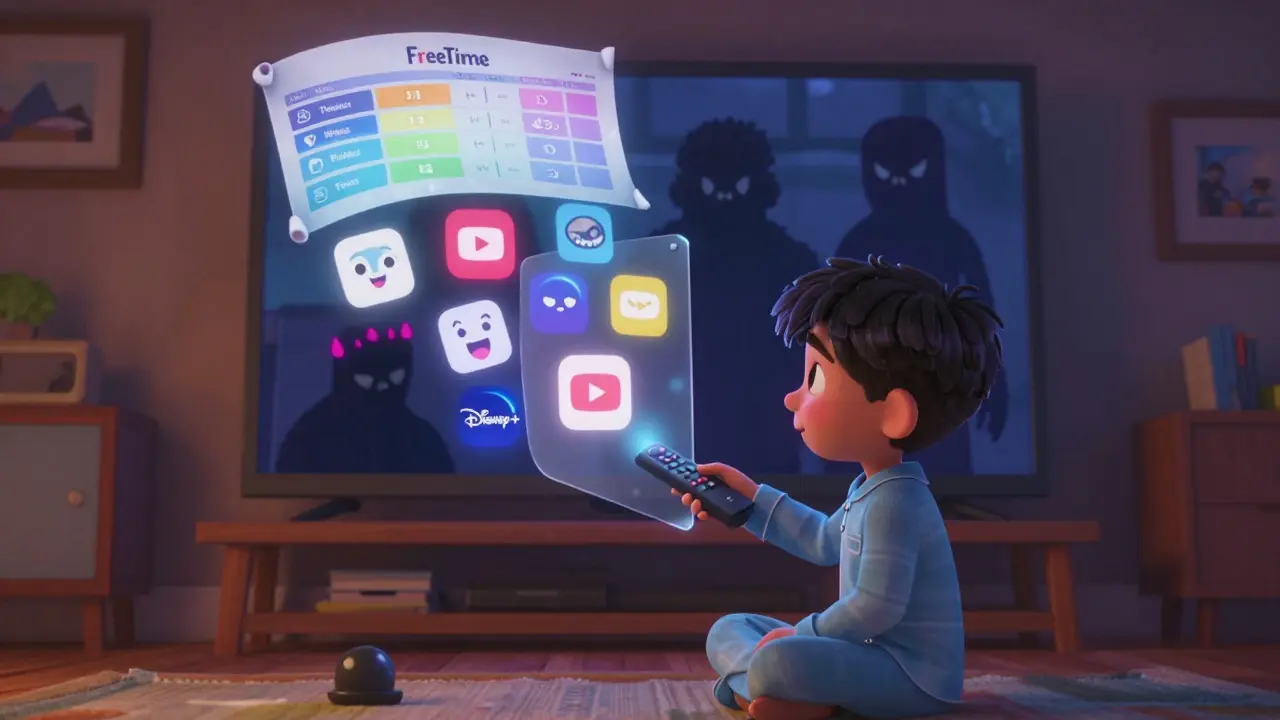
Amazon’s system is called “FreeTime,” and it’s one of the most robust options out there. It’s not just a profile-it’s a full parental control suite.
- Open the Settings menu on your Fire Stick.
- Select Parental Controls.
- Turn on FreeTime and create a PIN.
- Choose Create a New Profile and pick “Child.”
- Enter the child’s name and birthdate.
- Set daily time limits-say, 90 minutes per day.
- Choose which apps and content are allowed. You can block specific titles or entire genres.
FreeTime also gives you a weekly report on what your child watched. You’ll see titles, duration, and even how many times they tried to access blocked content. It’s not spying-it’s awareness.
And here’s the best part: FreeTime works across all Fire devices. So if your kid switches from the Fire Stick in the living room to the Fire Tablet in the car, the same rules follow them.
Other Devices: Apple TV, Google TV, and Android TV
Apple TV doesn’t have a dedicated kids profile, but it does have Screen Time, which works just as well.
- Go to Settings > Screen Time.
- Turn on Screen Time and set a passcode.
- Under Content & Privacy Restrictions, set age limits for movies, TV shows, and apps.
- Disable the App Store and web browser if needed.
Google TV and Android TV use Google Family Link. You need to set it up on your phone first, then link it to the TV.
- Open the Family Link app on your phone.
- Select your child’s profile.
- Go to TV & Devices > Manage TV.
- Enable content restrictions and set daily limits.
Google TV will then show only content approved for your child’s age group. No surprise horror clips. No sneaky ads.
What Happens When You Don’t Use a Kids Profile
Let’s say you don’t set one up. Your child finds a movie titled “The Haunted Dollhouse” on Netflix. It’s rated TV-14. The thumbnail shows a smiling child holding a doll. The description says “a fun family adventure.” But the first 10 minutes are full of screaming, jump scares, and a ghost that whispers, “I’m still here.”
That’s not fiction. That’s a real movie on a major streaming service. And without a kids profile, it’s just one click away.
Another common issue: autoplay. After a kids’ show ends, the device often plays the next trending video. That could be a prank video, a violent game clip, or a commercial for a toy that costs $120. Kids don’t know how to skip ads. They don’t know how to stop playback. And they don’t know how to explain what they just saw.
Parents report sleepless nights, anxiety in kids, and even nightmares after accidental exposure. It’s preventable.
Common Mistakes Parents Make
Most parents think they’ve done enough if they just turned on “Restricted Mode” on YouTube. That’s not enough. YouTube’s Restricted Mode doesn’t work on Roku or Fire Stick unless you’re using the YouTube app-and even then, it’s unreliable.
Another mistake: using one profile for everyone. If you share your Netflix account with your kid, they’ll see your watch history. That means romantic comedies, crime dramas, and R-rated films pop up in their suggestions. It’s not safe. It’s not fair.
And don’t forget the remote. If your kid can reach the remote, they can switch profiles. Always lock the profile with a PIN. And don’t write the PIN on the back of the remote.
What You Can’t Control
Even with the best profiles, you can’t block everything. Some kids’ content still has mild scares. Some ads still sneak through. Some apps-like TikTok or YouTube Kids-aren’t fully controlled by your TV’s profile system.
That’s why you need to combine tech with conversation. Talk to your kid about what they watch. Ask them what they liked. If they saw something weird, let them tell you. Don’t punish them for stumbling on something. Teach them how to pause it and call you.
Also, don’t rely on one device. Use multiple layers: a kids profile on the TV, a kid-safe app on the tablet, and a content filter on the Wi-Fi router. The more layers, the safer they are.
Final Checklist: Your 5-Minute Parental Control Setup
Here’s what to do today:
- Check your device: Is it Roku, Fire Stick, Apple TV, or Google TV?
- Go to settings: Find the parental controls or user profile section.
- Create a kids profile: Use their name, set their age, turn on PIN protection.
- Test it: Switch to their profile. Can they access your shows? Can they search for anything? If yes, go back and tighten the settings.
- Lock it: Make sure only adults can change the profile or disable it.
Do this once, and you’ll never have to hear, “Why is there a monster on the screen?” again.
What’s Next?
Once you’ve set up kids profiles on your main devices, consider adding a content filter to your home Wi-Fi. Services like Circle or OpenDNS can block inappropriate sites across all devices-even phones and tablets. It’s a small extra step that gives you peace of mind.
And if you’re wondering which streaming apps are safest for kids? Stick with Netflix Kids Mode, Disney+, Apple TV+ Kids, and YouTube Kids. Avoid apps like Tubi, Pluto TV, or Crackle unless you’ve locked them down with a profile. They’re free, but they’re full of unmoderated content.
You’re not being overprotective. You’re being responsible. And your kid will thank you later-when they’re old enough to choose what they watch, they’ll know the difference between safe and scary.
Can I use one kids profile for multiple children?
Yes, but it’s not ideal. Most systems let you create only one kids profile per account. If you have two kids with different ages, use the older child’s age setting to be safe. Better yet, create separate user accounts on the device if possible. Roku and Fire Stick support multiple profiles, so use them.
Do kids profiles block ads?
Not completely. Kids profiles block mature content, but not all ads. Ads for toys, snacks, or games still appear. That’s why it’s smart to pair your profile with an ad blocker on your Wi-Fi or use a subscription service like Disney+ or Apple TV+, which have fewer ads. Free services like Tubi or Pluto TV have heavy ad loads, even in kids mode.
What if my child forgets the PIN?
Every system has a way to reset it. On Roku, you can reset the PIN through your Roku account online. On Fire Stick, you can disable FreeTime from the parent account and re-enable it. Always keep your PIN in a safe place-like a password manager or a locked drawer. Don’t write it on the TV.
Can I set time limits on Roku?
Roku doesn’t have built-in time limits. You’ll need to use a third-party app like Circle or your router’s parental controls to cap screen time. Fire Stick and Google TV have this built in. If time limits are important, consider switching to Fire Stick or using a smart plug that turns off the TV after a set hour.
Are kids profiles available on all streaming apps?
No. Apps like YouTube, TikTok, and Twitch don’t respect your TV’s profile settings. They have their own controls. That’s why you need to manage them separately-on the app itself or through your phone’s parental controls. Always check the app’s settings, not just the TV’s.