
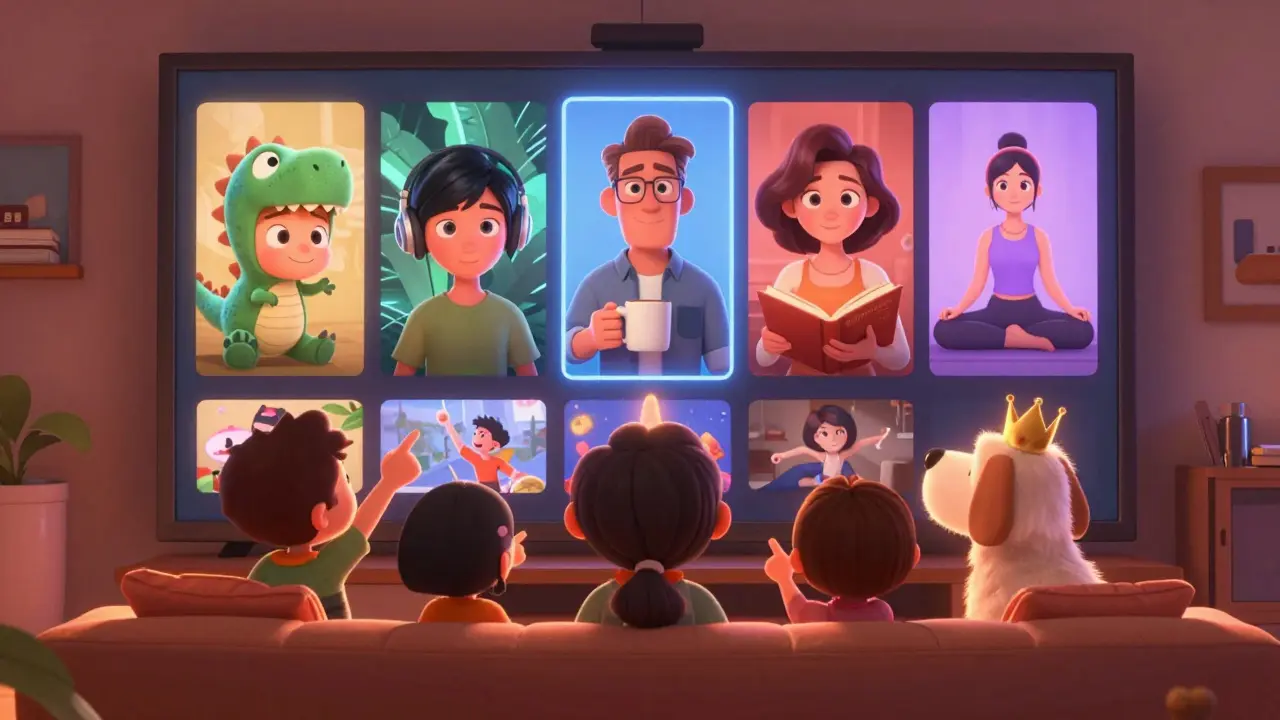
Why You Need Multiple Prime Video Profiles
Prime Video lets you stream movies and shows to anyone in your household - but if everyone shares the same profile, you’ll end up with weird recommendations. Your kid’s cartoon binge turns your homepage into a playground of talking animals. Your partner’s true crime obsession floods your suggestions with murder documentaries. And you? You just want to watch that new Italian drama without scrolling past ten episodes of Bluey.
Creating separate profiles fixes all of that. Each profile keeps its own watch history, recommendations, and even parental controls. It’s not just about convenience - it’s about keeping your viewing experience clean and personal.
How to Create a New Prime Video Profile
You can set up profiles on any device where you use Prime Video: Fire TV, smart TVs, phones, tablets, or even a web browser. Here’s how:
- Open Prime Video and sign in to your account.
- Click on your profile icon in the top-right corner.
- Select Switch Profile, then choose Add Profile.
- Name the profile - use something clear like "Sarah" or "Kids" - and pick an avatar.
- Decide if it’s a child profile. If you’re setting this up for someone under 13, turn on parental controls now.
- Click Save.
You can create up to six profiles per Prime account, including your own. That’s enough for most families, roommates, or even a couple who want to keep their watchlists separate.
Managing Your Profiles: Edit, Rename, Delete
Profiles aren’t set in stone. You can change them anytime.
To edit a profile:
- Go to amazon.com/profile and sign in.
- Under Prime Video Profiles, find the profile you want to change.
- Click Edit.
- You can rename it, change the avatar, or toggle parental controls on/off.
- To delete a profile, click Delete Profile. This removes watch history and recommendations - but not purchases. Anything bought under that profile stays tied to your account.
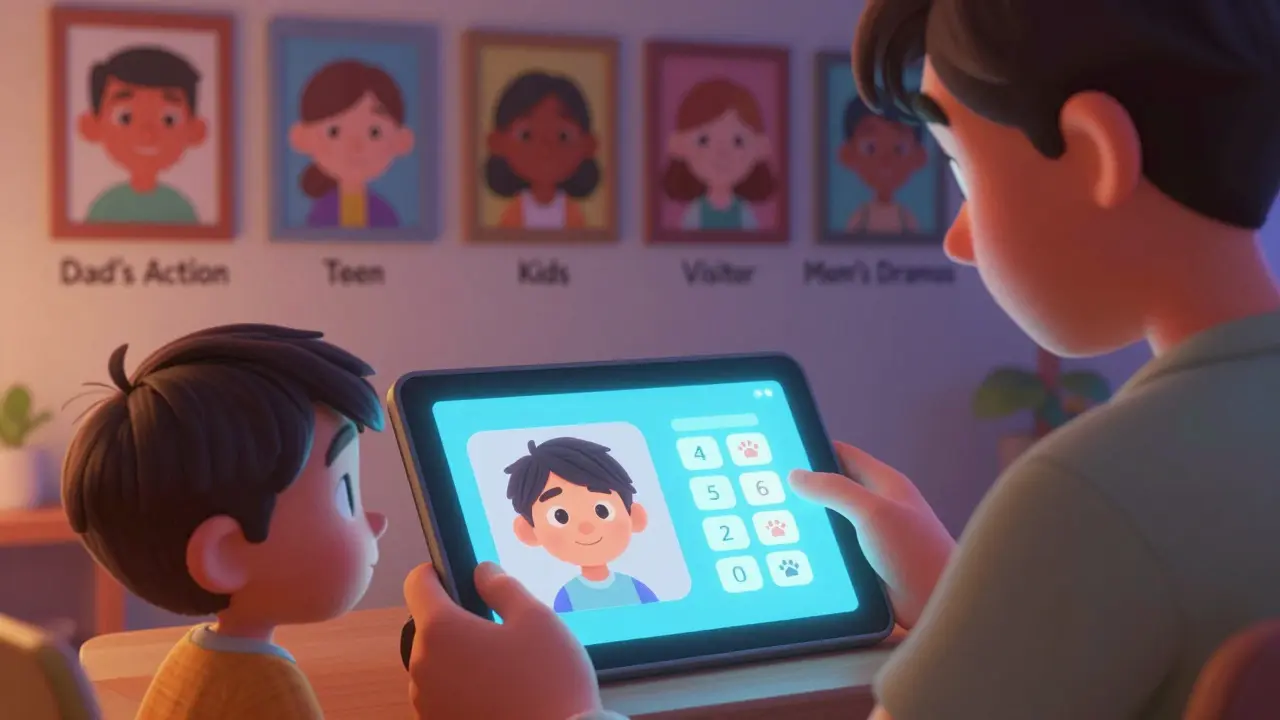
Pro tip: Avoid using generic names like "Profile 1" or "Home." You’ll forget who’s who. Use real names or clear labels like "Teen" or "Dad’s Action Movies."
Parental Controls: Keep Kids Safe
If you’ve got kids using Prime Video, you don’t want them stumbling into R-rated horror films or late-night talk shows. Child profiles come with built-in restrictions.
When you create a child profile, you can:
- Set a content rating limit - choose from G, PG, PG-13, or TV-14.
- Require a 4-digit PIN to watch anything above the limit.
- Turn off autoplay so they don’t accidentally binge six episodes of Peppa Pig after dinner.
You can also lock the profile so it can’t be switched to without entering your main account password. That stops your 8-year-old from accidentally switching to your profile and watching Stranger Things at 10 p.m.
Sharing Profiles vs. Sharing Accounts
Prime Video lets you share your account with up to three other people outside your household - but they get their own profiles, not yours. This is different from just handing someone your password.
If you add someone as a Prime member under your account, they can create their own profile and watch anything you’ve subscribed to - including add-ons like HBO or Showtime - without ever seeing your watch history or recommendations.
But if you just give someone your login, they’re using your profile. That means:
- They’ll see your watch history.
- Your recommendations get messed up.
- You can’t control what they watch.
Always use profiles for sharing. It’s cleaner, safer, and keeps your experience yours.
Watch History and Recommendations: Why They Matter
Prime Video’s algorithm is smart - but it’s only as good as the data it gets. If your profile has 200 hours of anime, 50 hours of yoga tutorials, and 10 hours of Mad Men, it’s going to push you anime and yoga. Not what you want.
Separate profiles mean each person gets recommendations based on their actual habits. Your partner’s love for British period dramas won’t drown out your sci-fi obsession.
And if you ever want to reset your recommendations? Clear your watch history. Go to your profile settings, find Viewing Activity, and click Clear History. That resets the algorithm from scratch.
What Happens When You Switch Profiles?
Switching profiles is instant. On your Fire TV, you just press the home button and pick a profile. On your phone, tap your icon and select the right one.
Each profile remembers:
- What you’ve watched
- What you’ve saved to Watchlist
- Your watch progress (so you can pick up where you left off)
- Your personalized homepage
- Your parental controls
Nothing carries over. That’s the whole point. Your profile is your own little corner of Prime Video.
Common Mistakes and How to Avoid Them
People mess this up all the time. Here are the top three errors:
- Using one profile for everyone. Result? A mess of recommendations. Fix: Set up separate profiles - it takes two minutes.
- Not using parental controls. Result? Kids watching stuff they shouldn’t. Fix: Always enable PIN protection on child profiles.
- Sharing your password instead of adding profiles. Result? Your watchlist gets polluted. Fix: Add people as members, not as profile users.
Also, don’t delete profiles just because someone stopped using them. You can always hide them. Deleted profiles are gone for good - and so is their watch history.
Final Tip: Use Profiles Like a Pro
Here’s how to get the most out of your profiles:
- Create a profile for guests - give them a name like "Visitor" so you know who’s watching when you check your history.
- Use the "Kids" profile as a sandbox. Let them explore, but lock down ratings.
- Check your profile settings once a month. Make sure nothing’s turned on by accident.
- Use different avatars. A dog for the dog lover, a spaceship for the sci-fi fan. Visual cues help everyone find their profile fast.
Prime Video profiles aren’t just a feature - they’re the key to enjoying the service without the clutter. Set them up right, and your streaming experience becomes smooth, personal, and actually enjoyable.
How many profiles can I have on Prime Video?
You can create up to six profiles per Prime Video account. This includes your own profile and up to five additional ones. Each profile has its own watch history, recommendations, and settings. You can’t have more than six, even if you add more people to your household.
Can I share my Prime Video account with friends outside my home?
Yes, but not by sharing your password. Prime Video lets you add up to three other people as members of your Prime account. Each person gets their own profile with personalized recommendations and watch history. They can watch everything you can, including add-on channels, without seeing your activity. This is the only safe way to share.
What happens if I delete a Prime Video profile?
Deleting a profile removes its watch history, recommendations, and saved lists. But any movies or shows purchased under that profile stay tied to your Amazon account - you can still watch them from another profile. You can’t recover the history once deleted, so only delete profiles you’re sure you won’t need again.
Can I set different parental controls for each profile?
Yes. Only child profiles have parental controls, but you can customize them individually. One profile can be set to PG-13, another to TV-Y7, and your own profile can have no restrictions. Each child profile requires a PIN to access content above its limit, and you can change these settings anytime from your Amazon account page.
Why are my recommendations so weird even after creating profiles?
Sometimes, recommendations get mixed up if someone used your profile before you created separate ones. Clear your watch history in the profile settings to reset the algorithm. Also, make sure everyone is using their own profile - if someone still logs in as you, your recommendations will keep getting polluted.