
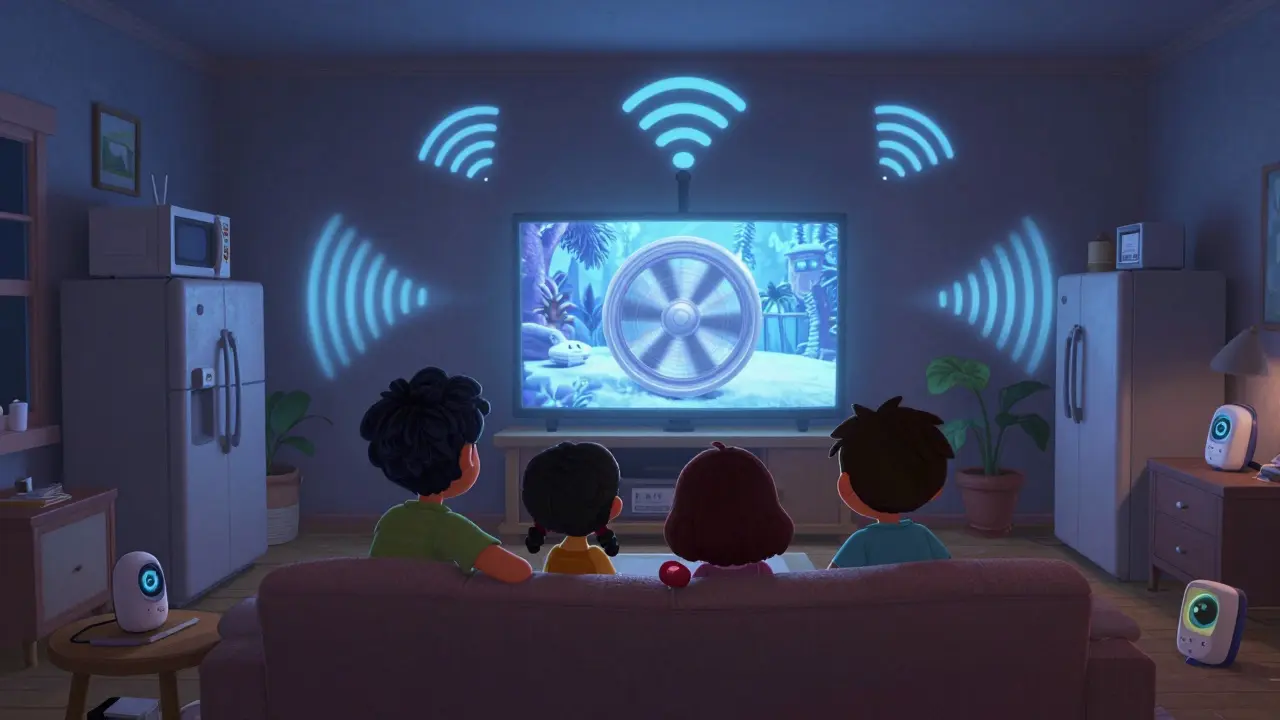
Nothing kills a movie night faster than a frozen screen. You’re halfway through your favorite show, the tension’s building, and then-freeze. The image locks. The sound cuts out. A spinning wheel taunts you. You hit pause, hit play, restart the app, restart the router… and it happens again. If this feels familiar, you’re not alone. Millions of people deal with streaming freezes every week, and most of the time, it’s not your subscription or the service’s fault. It’s something you can fix-right now.
Your internet speed isn’t what you think it is
Most people blame their streaming service when the video freezes. But the real culprit? Your internet connection. Streaming services like Netflix, Disney+, or Apple TV+ don’t just need an internet connection-they need a stable one. For HD streaming, you need at least 5 Mbps. For 4K? You need 25 Mbps or higher. Sounds simple, right? But here’s the catch: your router might say you’re getting 100 Mbps, but that’s the max speed from your ISP. What you’re actually getting when you’re watching TV? Maybe 8 Mbps. And that’s not enough.
Why? Because Wi-Fi is messy. Walls, microwaves, baby monitors, even your neighbor’s smart fridge can interfere. If you’re streaming on a tablet in the living room but your router’s in the hallway upstairs, you’re fighting signal loss. Try moving closer to the router. Or better yet, plug your TV or streaming box directly into the router with an Ethernet cable. No Wi-Fi. No interference. No freezes.
Your Wi-Fi is overloaded
Think of your home network like a highway. If 10 people are streaming 4K videos, downloading files, video-calling, and playing online games at the same time, that highway gets jammed. And guess what? Your streaming app is the first to choke.
Check what’s using your bandwidth. Open your router’s admin page (usually at 192.168.1.1 or 192.168.0.1-check your router manual). Look for a section called “Connected Devices” or “Network Usage.” See if your smart fridge, security camera, or gaming console is hogging data. Turn off anything you don’t need right now. If you’ve got a smart home setup, schedule updates and backups for late at night when you’re not watching TV.
Another trick: change your Wi-Fi channel. Most routers auto-select one, but if your neighbor’s router is on the same channel, you get interference. Use a free app like Wi-Fi Analyzer (Android) or NetSpot (Mac) to see which channels are least crowded. Switch to channel 1, 6, or 11 on 2.4 GHz, or 36, 40, 44, or 48 on 5 GHz. It’s not magic-it’s physics.
Your device is outdated or overheating
Older streaming sticks and boxes don’t handle modern codecs well. If you’re still using a Roku Express from 2017 or an Amazon Fire Stick (1st gen), it’s time to upgrade. Newer models support H.265 (HEVC) and AV1 codecs, which compress 4K video more efficiently. Older hardware struggles to decode these, causing buffering and freezes.
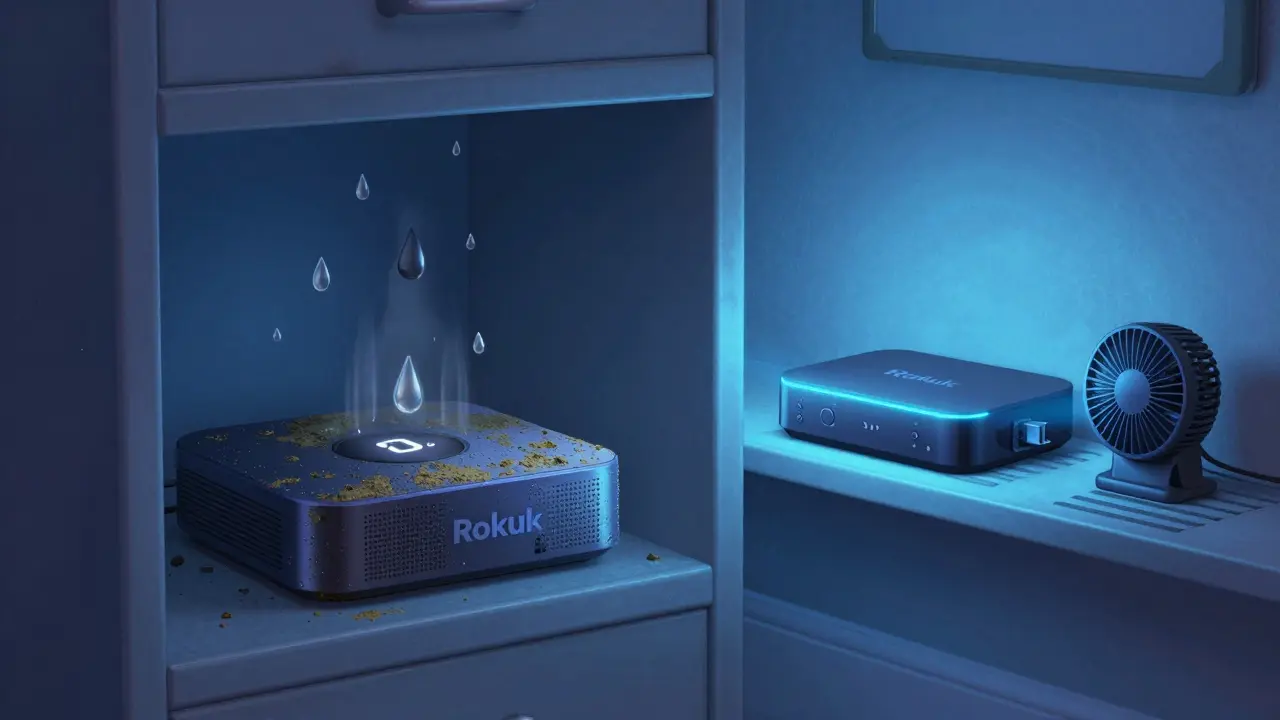
Also, check if your device is hot. If your Roku or Apple TV feels warm to the touch, it’s overheating. Heat slows down processors. Place it in an open space, away from enclosed cabinets or stacked under other electronics. A small USB-powered fan pointed at it can help. I’ve seen people fix freezing issues just by moving their device to a shelf with airflow.

The streaming app itself is glitching
Yes, apps can mess up. Even Netflix has bad days. Clear the app’s cache and data. On Android: go to Settings > Apps > Netflix > Storage > Clear Cache and Clear Data. On iOS: delete the app and reinstall it. Don’t worry-your account and watch history stay intact. This wipes out corrupted temporary files that cause crashes and freezes.
Also, check for updates. Outdated apps often have bugs that cause playback issues. Turn on auto-updates in your app store. And if you’re using a smart TV’s built-in app, check for a firmware update. Samsung, LG, and Sony TVs get regular software patches that fix streaming bugs.
Your ISP is throttling streaming traffic
Some internet providers secretly slow down video streaming during peak hours. They don’t tell you. But if you notice your streaming freezes only after 8 p.m., and it’s fine at 2 a.m., that’s a red flag. Test this: use a VPN. Install a free one like ProtonVPN or Windscribe, connect to a server, and stream again. If the freezing stops, your ISP is throttling you. Talk to them. Or switch providers. In Ireland, providers like Vodafone, Eir, and Virgin Media have different policies-check their terms.
Some ISPs offer “streaming-friendly” plans with no throttling. Ask them. If they say no, consider switching. It’s not conspiracy-it’s business. And you’re the customer.
Try these 5 quick fixes right now
Don’t wait. Try this checklist before you give up:
- Restart your router-unplug it for 30 seconds, plug it back in.
- Switch from Wi-Fi to Ethernet. Use a cable if you can.
- Lower the video quality in your streaming app settings. Go from 4K to 1080p.
- Close all other apps and devices using the internet.
- Update your streaming device’s software.
Do all five? You’ll fix 80% of freezing issues. No tools. No cost. Just action.
What to do if nothing works
If you’ve tried everything and your streaming still freezes, it’s time to dig deeper.
Run a speed test during your usual streaming time. Use Speedtest.net or Fast.com. If you’re getting less than 15 Mbps while watching HD, your connection is too slow. Consider upgrading your plan. In Ireland, a 100 Mbps broadband package costs around €30-€40/month. That’s cheaper than replacing your streaming device.
Also, check for network congestion. Are you on a shared connection? Apartment buildings with one router for 20 units? That’s a disaster for streaming. Ask your landlord or building manager if they can upgrade the router or install a mesh system. If you’re renting, you might be stuck-but you can still use a Wi-Fi extender or a mesh node like TP-Link Deco or Netgear Orbi.
Finally, if your router is older than 5 years, replace it. Older routers don’t handle modern traffic well. A new dual-band or tri-band router under €80 will make a huge difference. Look for ones with MU-MIMO and OFDMA-these let multiple devices stream smoothly at once.
Prevention is better than fixing
Here’s how to stop this from happening again:
- Use Ethernet for your main TV or streaming box.
- Keep your streaming device updated.
- Don’t leave 10 devices streaming at once.
- Upgrade your internet plan if you have 4K TVs or multiple users.
- Use a mesh Wi-Fi system if your home is bigger than 100 square meters.
Streaming freezes aren’t inevitable. They’re symptoms. And once you know what to look for, you can fix them-fast.