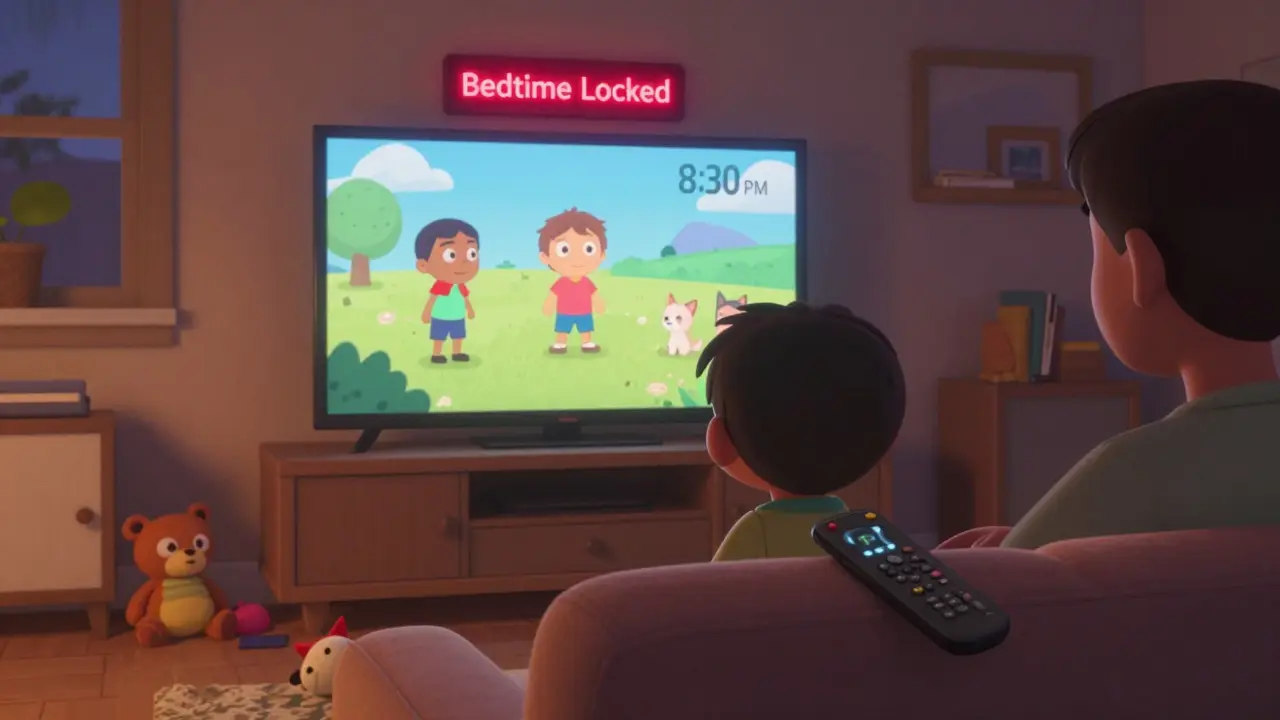
Every parent knows the scene: you hand your kid a tablet or remote, turn your back for a second to grab coffee, and suddenly you’re getting a text from your bank saying $87 was spent on a virtual dragon. It’s not magic. It’s a streaming device with no locks on purchases or apps. Kids Mode isn’t just a feature-it’s a necessity if you want to keep your wallet and your sanity intact.
What Kids Mode Actually Does
Kids Mode on streaming devices isn’t a fancy filter or a cartoon theme. It’s a locked-down environment that blocks access to adult content, stops accidental purchases, and limits which apps your child can open. Think of it like a digital playpen: you set the boundaries, and the device won’t let them wander outside.
On Amazon Fire tablets, Kids Mode turns the whole interface into a child-friendly space with curated apps, books, and videos. On Roku, it’s called Parental Controls and lets you lock specific channels and block purchases with a PIN. Apple TV’s Screen Time does the same, but with tighter integration into the iOS ecosystem. Google’s Family Link on Chromecast lets you approve apps before they’re installed.
None of these work by accident. You have to turn them on. And most parents don’t-until it’s too late.
How to Turn On Kids Mode (Step by Step)
Here’s how to set it up on the most common devices right now:
- Amazon Fire Tablet: Go to Settings → Parental Controls → Turn On. Create a PIN. Then choose which apps, games, and content are allowed. You can also set daily time limits and block web browsing entirely.
- Roku: Press the Home button, go to Settings → Parental Controls. Set a 4-digit PIN. Then select which channels to block and turn on purchase protection. You can even lock the channel store so nothing can be downloaded without the PIN.
- Apple TV: Go to Settings → Users and Accounts → Screen Time. Turn on Screen Time, set a passcode, then go to Content & Privacy Restrictions. Block purchases, restrict apps, and limit explicit content.
- Google Chromecast with Google TV: Open the Google Family Link app on your phone. Select your child’s profile, tap Controls → Content Restrictions. You can block apps, set time limits, and approve any new downloads.
- NVIDIA Shield TV: Go to Settings → Parental Controls. Set a PIN and choose which apps to block. You can also restrict access to the Google Play Store.
Don’t skip the PIN step. If you don’t set one, anyone can turn off Kids Mode with a tap. I’ve seen kids reset their parents’ devices just because the PIN was left blank.
Blocking Purchases Is the Most Important Step
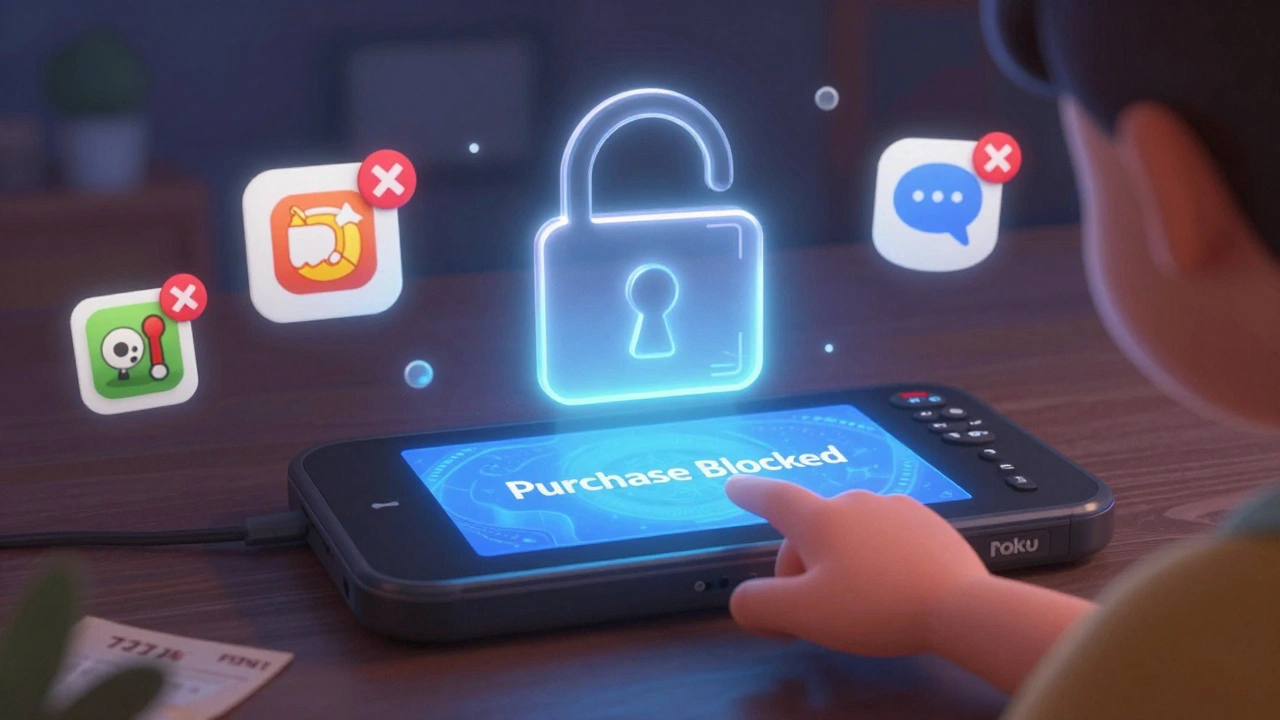
Most parents think they’re safe because their kids only watch cartoons. But streaming devices aren’t just for watching-they’re storefronts. One tap, and your credit card gets charged for a $15 in-game currency pack or a $20 movie rental.
Amazon’s Fire tablets have a “Require Password for Purchases” option. Turn it on. Roku has a “Purchase PIN” setting. Apple TV requires a passcode for every download. Google’s Family Link lets you approve purchases before they happen.
Here’s the hard truth: if you don’t lock purchases, your kid will find a way to spend money. A 2024 report from the Consumer Financial Protection Bureau found that over 12,000 parents in the U.S. reported unauthorized charges from kids’ streaming use-averaging $68 per incident. That’s not a one-off. That’s a pattern.
And it’s not just about money. Some apps let kids chat with strangers, share screens, or record videos. Kids Mode turns those off too.
What Kids Mode Doesn’t Do
Don’t assume Kids Mode makes your device 100% safe. It doesn’t block everything.
For example, if your child uses a browser app (like Chrome) and you didn’t block it, they can still search for anything. If they have access to a phone or tablet with their own account, they can sideload apps or use a different streaming service.
Kids Mode also doesn’t monitor what they watch inside allowed apps. A cartoon channel might still show ads for toys or unhealthy snacks. That’s why you need to check the content yourself-even in “kid-safe” apps.
And if your device is connected to a smart TV without parental controls, your kid might just switch inputs and watch something else entirely.
Common Mistakes Parents Make
Here are the three biggest errors I see:
- Using the same PIN as your phone or door code. Kids figure it out fast. Use a random 4-digit code-something you won’t guess, even if you’re tired.
- Only turning it on for one device. If you have a Fire tablet, Roku, and Chromecast, set up Kids Mode on all of them. One unlocked device is a backdoor.
- Assuming “Kids” means safe. Some apps labeled “for kids” still have in-app purchases, ads, or links to other apps. Always review what’s installed.
Also, don’t rely on your child’s honesty. They’re not trying to trick you-they just don’t understand money. A $5 purchase feels like a candy bar to a 6-year-old. That’s why you need the lock, not the lecture.
What to Do If You’ve Already Been Charged
If you’ve already seen a surprise charge:
- Log into your account (Amazon, Apple, Google, Roku) and find the purchase history.
- Look for the transaction-note the time, app, and amount.
- Request a refund. Most platforms have a child purchase refund policy. Amazon, Apple, and Google all let you dispute charges made by kids under 13.
- Turn on Kids Mode immediately after.
Apple will refund 9 out of 10 child purchase claims if you say it was made by a minor. Amazon does the same. You don’t need proof-just a clear statement.
Alternative Options
If your device doesn’t have built-in Kids Mode, or you want more control:
- Use a separate profile. On Roku, Apple TV, and Chromecast, create a separate user profile for your child. That way, their downloads and settings won’t affect yours.
- Use a kid-specific streaming box. Devices like the LeapFrog LeapPad or VTech InnoTab are built for kids and have no access to real app stores.
- Block Wi-Fi access. Use your router’s parental controls to limit internet access to certain hours or block specific devices.
None of these replace Kids Mode-but they help fill the gaps.
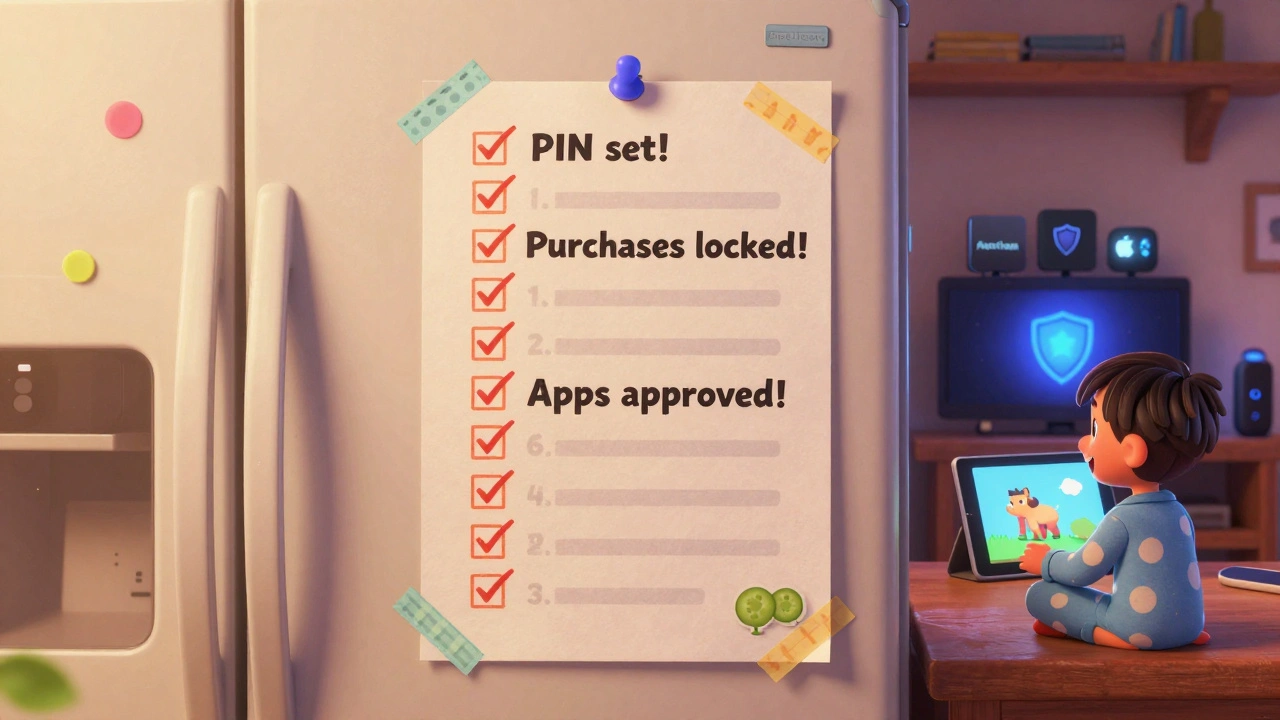
Final Checklist: Is Your Kids Mode Set Up Right?
Before you hand over the remote again, run through this:
- ✅ Kids Mode is turned on on every device
- ✅ A unique PIN is set (not 1234 or your birthday)
- ✅ Purchases are blocked or require a password
- ✅ Web browsing is disabled (if not needed)
- ✅ Only approved apps and channels are visible
- ✅ Time limits are set if you want them
- ✅ You’ve tested it by trying to buy something yourself
If you checked all seven, you’re ahead of 80% of parents. The rest are still waiting for the next surprise charge.
Can kids turn off Kids Mode on their own?
Only if you didn’t set a PIN. Once a PIN is created, the device requires it to exit Kids Mode. If you use a simple code like 1234, your child might guess it. Always use a random 4-digit number you won’t forget but they won’t guess.
Does Kids Mode work on smart TVs?
It depends. Some smart TVs like Samsung and LG have built-in parental controls. Others don’t. If your TV doesn’t have it, use a streaming device like Roku or Fire TV Stick with Kids Mode turned on. That’s the most reliable way to control what’s watched.
What if my child uses a phone or tablet instead?
You need to set up parental controls on those devices too. Use Apple’s Screen Time for iPhones, Google Family Link for Android, or Amazon’s FreeTime for Fire tablets. Don’t assume the streaming device is the only risk-kids often switch to phones for more freedom.
Are there free apps to help with parental controls?
Yes. Google Family Link and Apple Screen Time are free and work across devices. Amazon’s FreeTime is free for Fire devices. Avoid third-party apps that ask for passwords or payment-they’re often scams. Stick with the platform’s built-in tools.
How often should I check Kids Mode settings?
Check every 3 to 6 months. Kids grow, apps update, and new features get added. A setting that worked last year might not block the new TikTok-style app that slipped through. Revisit your PIN, approved apps, and purchase rules regularly.
Next Steps
If you’ve never set up Kids Mode, start today. Pick one device-your child’s favorite-and go through the steps. It takes less than 10 minutes. Do it before bedtime, when you’re not distracted.
If you’ve already set it up, test it. Try to make a purchase. Try to open a blocked app. If you can do it without a PIN, you’re not protected.
And if you’re still getting surprise charges? Call your payment provider. Most will refund it. Then lock it down again. Harder this time.